Log in to Your Masteriyo Account, Manage Your Subscription, and Download Masteriyo Pro
Log in to your Masteriyo account to download the Masteriyo Pro plugin, view your license key, and manage or cancel your subscription.
How to Request Access to Your Account?
-
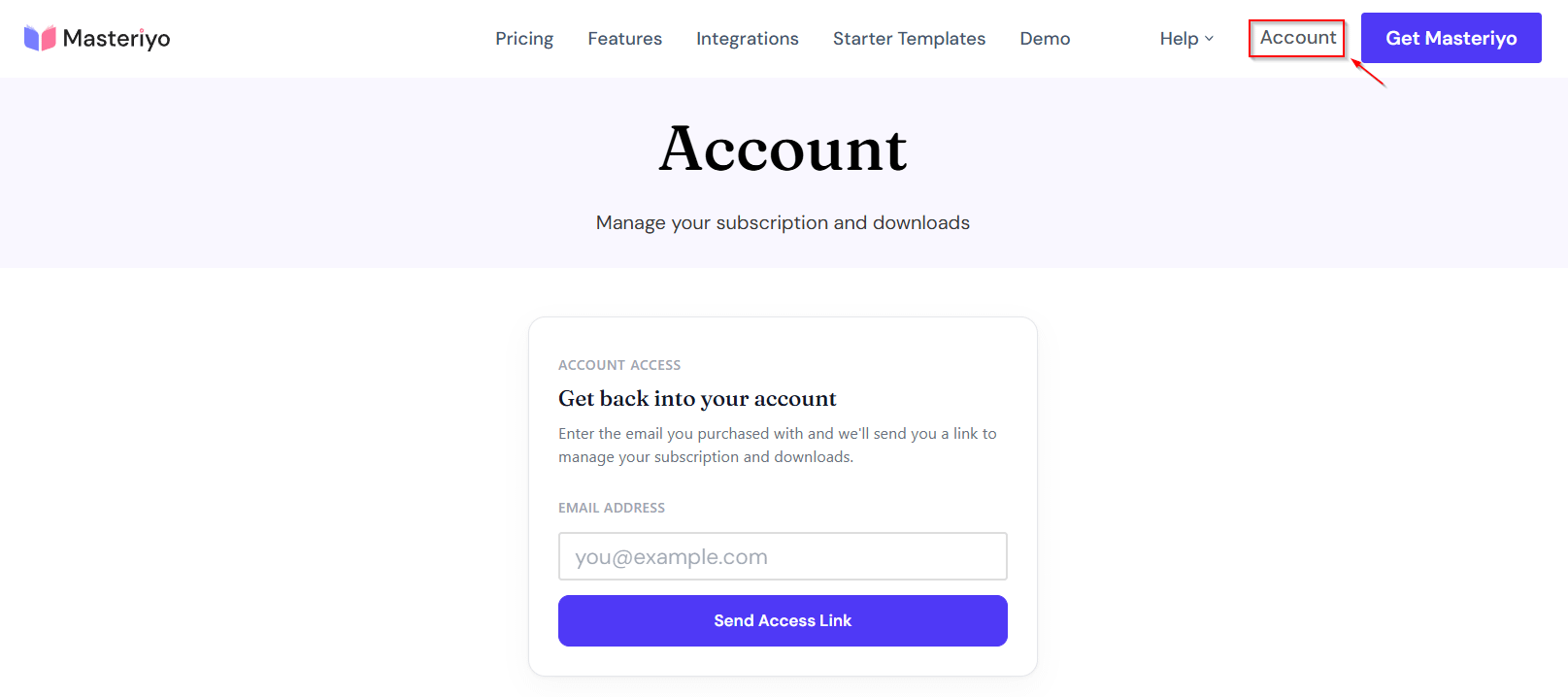
Go to masteriyo.com/account, or click Account in the top navigation on any masteriyo.com page.
-
Enter the email address you used when you purchased Masteriyo.
-
Click Send Access Link.
Note: Use the exact email address you checked out with. If you're not sure which address that was, check your inbox for a receipt from Masteriyo around your purchase date, or contact support.
How to Open Your Account and View Your License?
-
Open your mailbox and check for the access link email — it usually arrives within a few minutes.
-
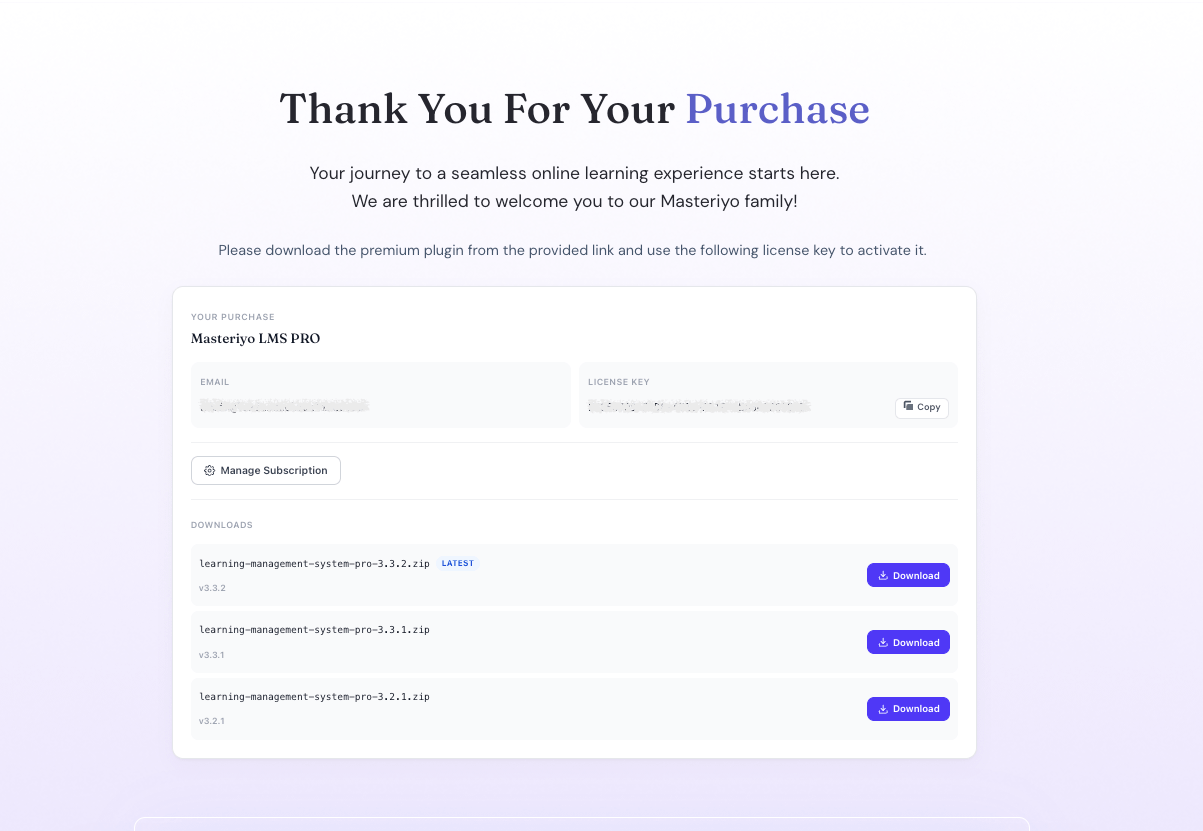
Click the link in the email to open your account page. It shows:
- Your purchase — plan name and status (Active, Expired, etc.)
- Email and License Key, with a Copy button next to the license key
- Renew date — when your subscription is next due to bill
- View Receipt — your original purchase invoice
- Manage Subscription — update payment details, change plan, or cancel
How to Download the Latest or a Previous Version of Masteriyo Pro?
Your account page lists every released version of Masteriyo Pro, not just the latest — each with its own Download button. The most recent version is marked Latest.
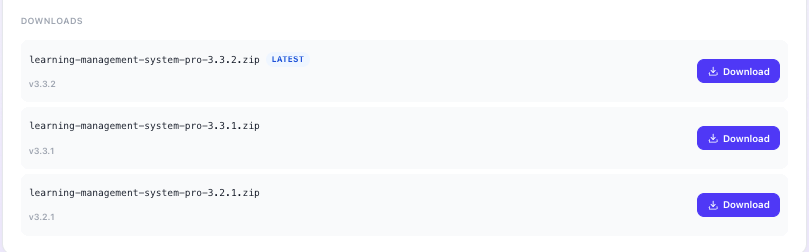
Use this if you need to roll back to a previous version while troubleshooting a compatibility issue, instead of only ever having access to the newest release.
Note: Want to know how to install Masteriyo Pro? Check this documentation.
What to Do If You Didn't Receive the Access Link Email?
- Check your spam or promotions folder.
- Confirm you entered the exact email used at checkout. A typo, or a different address (e.g. a work email vs. a personal email), will not receive the link.
- Still nothing after a few minutes? Contact support with your purchase email and approximate purchase date.
Was this article helpful to you?
Give us Rating
Last edited on August 12, 2026.
Edit this page