PayPal Payment Gateway (Standard)
Learn how to set up the Standard PayPal payment gateway in Masteriyo LMS to accept course payments from students worldwide. This guide covers enabling PayPal, configuring your account details, finding your Identity Token, and testing transactions in sandbox mode before going live.
Prerequisites
- Masteriyo LMS: Free plan or higher.
- SSL Certificate: Your site must be running on HTTPS to process secure payments.
- PayPal Account: A registered PayPal account (a Business account is recommended so you can receive payments and access API credentials).
Before You Start
- Backup Your Site: It is a best practice to have a recent backup of your site before adding new payment integrations.
- Check Currencies: Confirm that your Masteriyo store currency is supported by PayPal to avoid transaction errors.
Getting Started with PayPal
Step 1: Open the PayPal Payment Settings
- Go to your WordPress dashboard and navigate to Masteriyo > Settings.
- Click on the Payments tab.
- Select Standard PayPal from the payment methods list.
- Toggle Enable to turn on the PayPal payment method at checkout.
- Click Save Settings once you've enabled it, then continue configuring the options below.
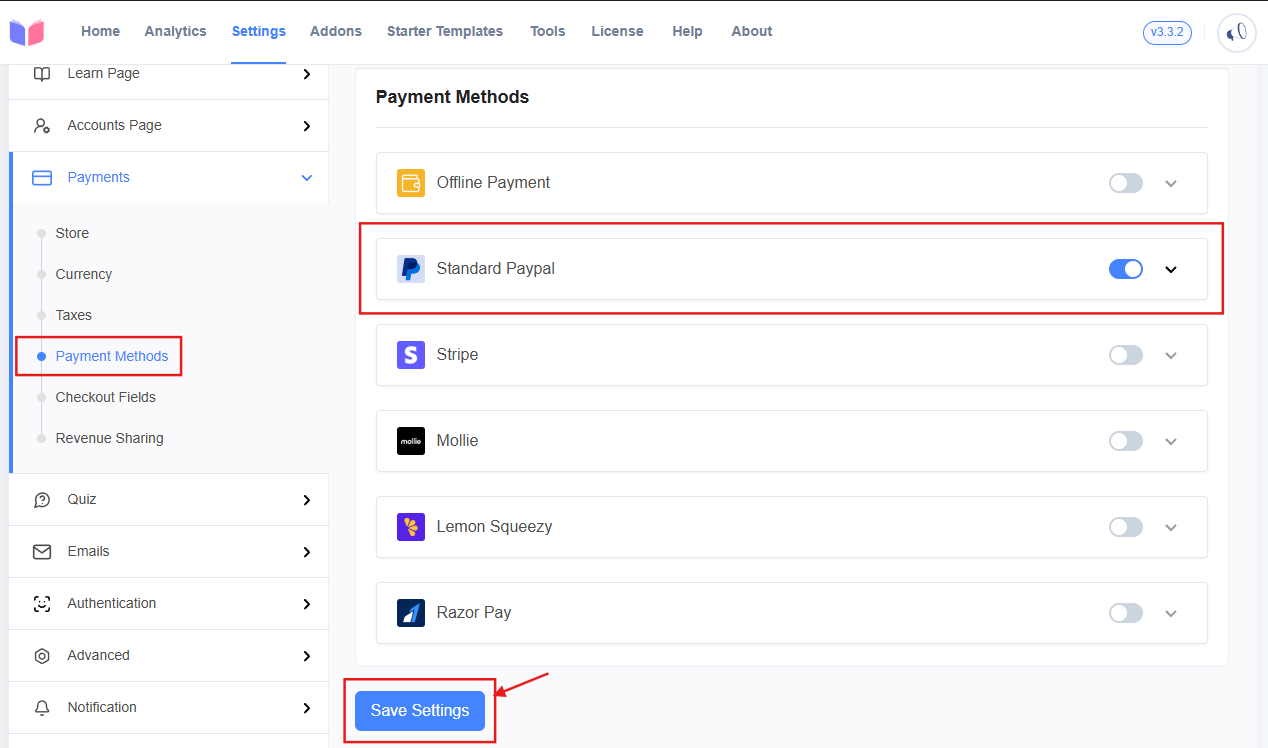
Note: Enabling PayPal here is enough to accept it as a checkout option, but you'll get the most reliable order tracking by also filling in your PayPal email and identity details as described in Step 3.
Step 2: Configure PayPal Options
After enabling PayPal, configure the following fields under Masteriyo > Settings > Payment methods > Standard PayPal:
- Title: The name of the payment method shown to students at checkout (e.g., "PayPal").
- Description: Text shown under the title to explain the payment method to the student.
- IPN Email Notification: Enable this to receive an email whenever an Instant Payment Notification (IPN) is received from PayPal.
- PayPal Email: The email address associated with your PayPal account, used to receive payments.
- Receiver Email: Only needed if the PayPal account that receives payments uses a different email than the one entered above.
- Identity Token: A unique alphanumeric code from your PayPal account, used to securely verify payment notifications.
- Invoice Prefix: A prefix added to invoice numbers so Masteriyo orders don't clash with orders from other stores using the same PayPal account.
- Payment Actions: Choose Capture to charge the student immediately, or Authorize to place a hold on the funds and capture them manually later.
- Debug Log: Enable this to store debug logs, useful for troubleshooting failed transactions.
- Sandbox: Enable this to test payments using a PayPal sandbox/test account. Turn this off for live sales.
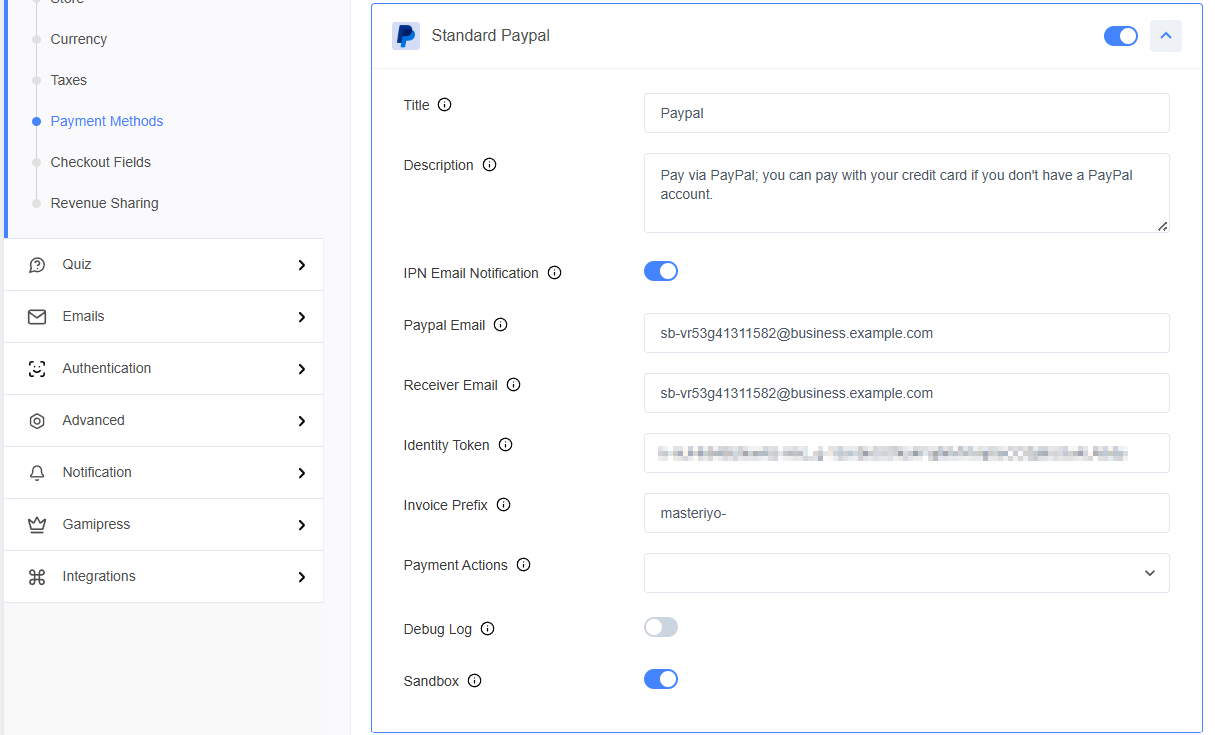
Tip: Keep Sandbox enabled while you test the integration, and only switch to your live API credentials once you've confirmed test orders complete successfully.
Finding Your PayPal Identity Token
The Identity Token helps Masteriyo verify that payment notifications genuinely came from PayPal.
If you have a personal PayPal account
If you're using a personal PayPal account, follow the steps below.
- Log in to your PayPal account with your personal account credentials.
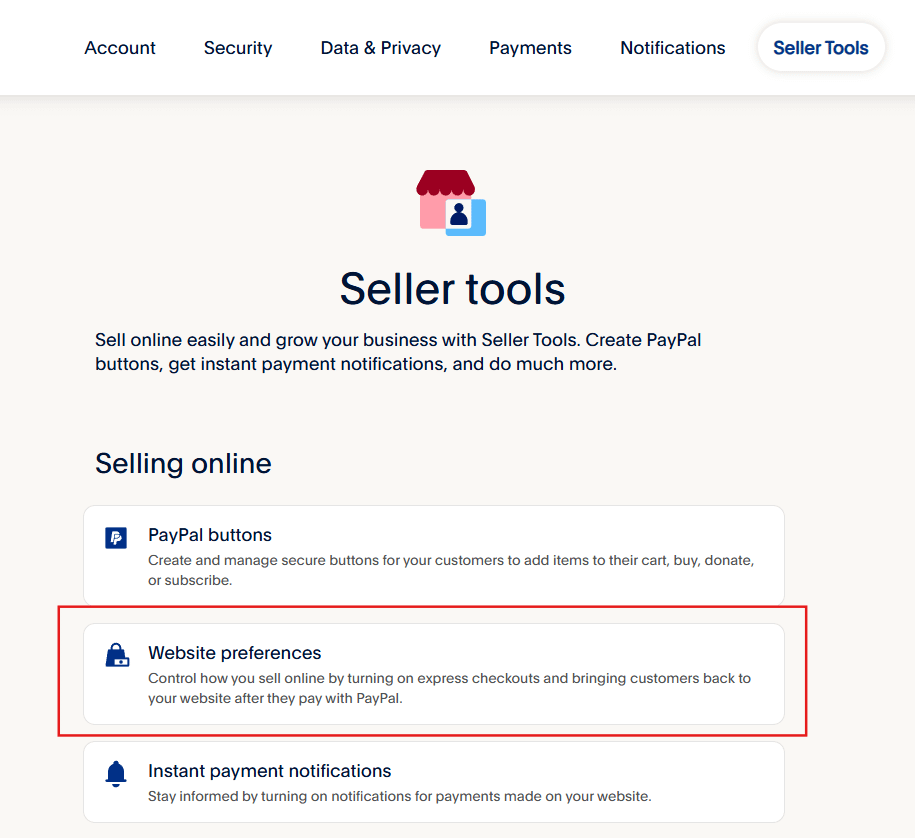
- Click the Settings icon and go to Seller Tools.

- Under Seller Tools, click Website preferences.
- Turn on Auto Return for website payments, and enter the Return URL — the page you'd like students redirected to after completing payment and click on save option.
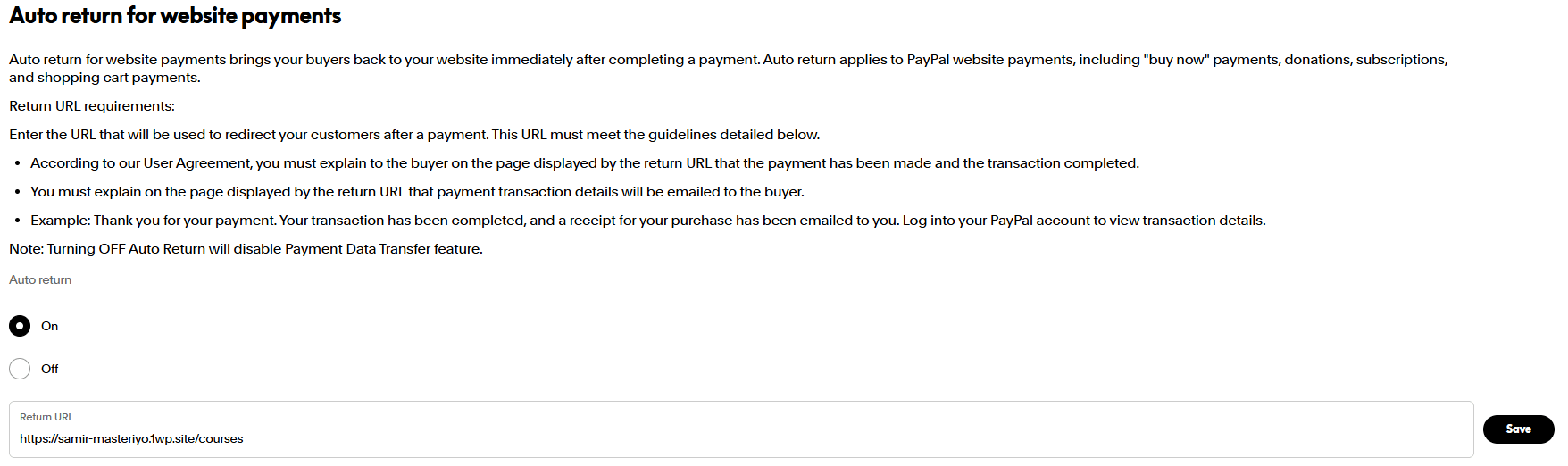
- Enable Payment Data Transfer to generate an Identity Token.

- Turn off Encrypted Website Payments.
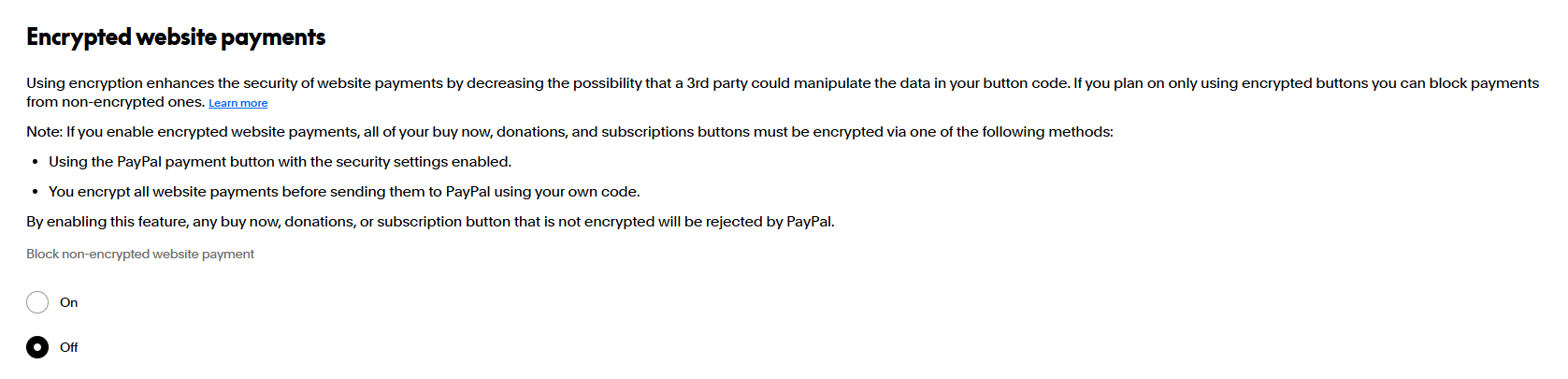
- Disable the PayPal Account Optional setting if you want students to be required to log in to a PayPal account to pay (rather than checking out as a guest with a card).

- Save your changes, then copy the generated Identity Token and paste it into the Identity Token field in Masteriyo, then save the Masteriyo settings.
If you have a PayPal business account
Once you've completed the steps above, if you have a PayPal business account, follow these steps for the Identity Token instead:
- Log in to your PayPal account with your business account credentials.
- Click on the profile icon in the top corner and click Settings.

- Under Settings, go to Website payments under Products and services and Click Website preferences under Website, then click Update (or any equivalent option available there).
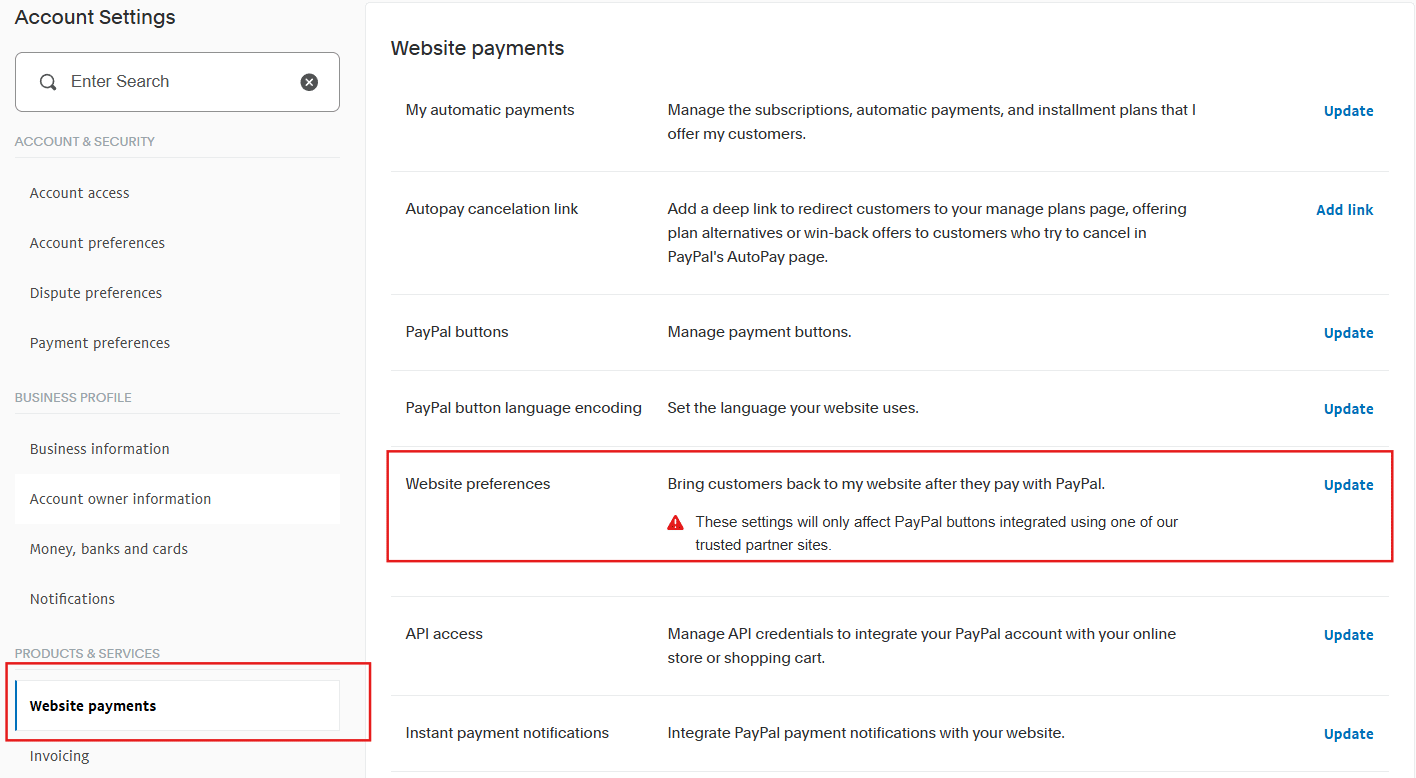
- Turn on Auto Return for website payments, and enter the Return URL — the page you'd like students redirected to after completing payment, then click on the save option.
- Enable Payment Data Transfer to generate an Identity Token.

- Turn off Encrypted Website Payments.
- Disable the PayPal Account Optional setting if you want students to be required to log in to a PayPal account to pay (rather than checking out as a guest with a card).
- Save your changes, then copy the generated Identity Token and paste it into the Identity Token field in Masteriyo, then save the Masteriyo settings.
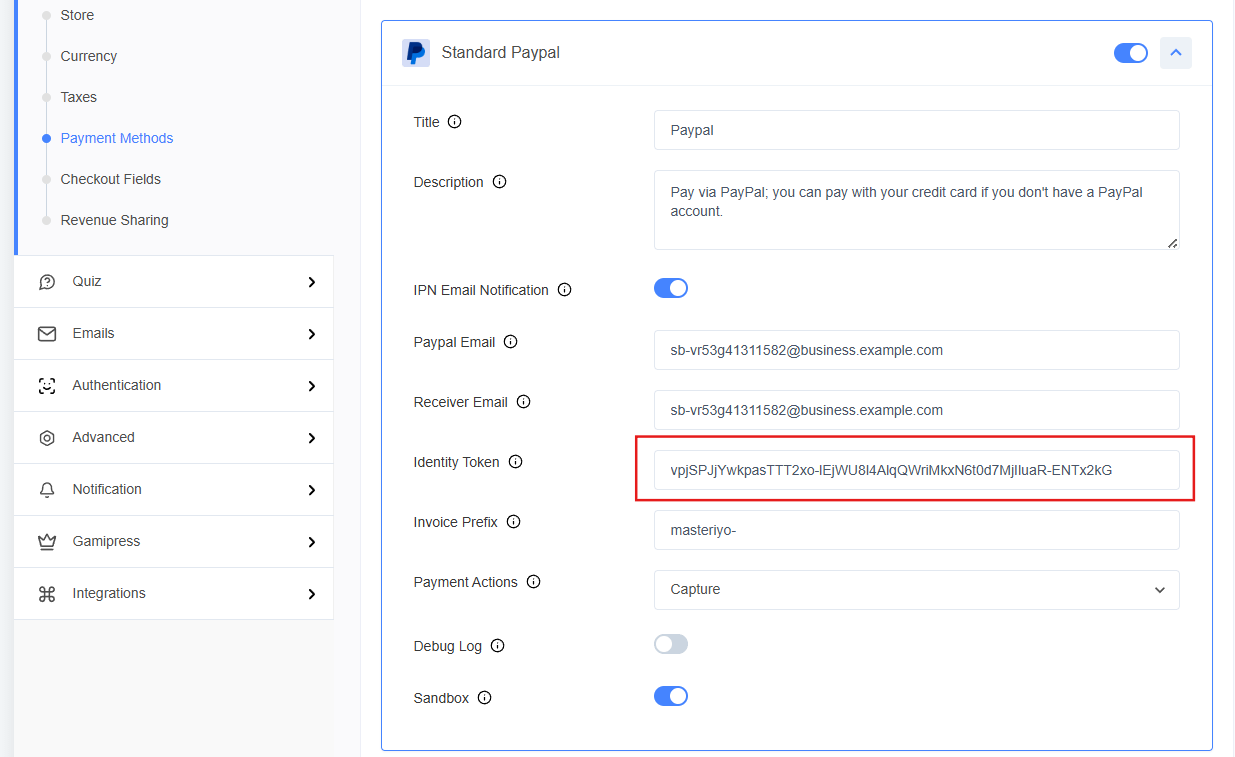
Note: These steps are identical to the personal account setup above — the only difference is that the Identity Token generated will be tied to your business account.
Testing Your Setup
- Use Sandbox Mode: Enable the Sandbox option in your Masteriyo PayPal settings to simulate a purchase without using real money.
- Perform a Test Purchase: Log in as a student and purchase a course using a PayPal sandbox buyer account.
- Verify Order Completion: If the setup is correct, the order status should update automatically once PayPal confirms the payment, and the student should get immediate access to the course.
- Check Debug Logs: If an order doesn't complete, enable Debug Log and review the logs for errors from PayPal.
Note: Always remember to disable Sandbox mode and enter your Live API credentials when you're ready to accept real payments from students.
Was this article helpful to you?
Give us Rating
Last edited on August 12, 2026.
Edit this page