H5P Integration
Embed interactive H5P content in lessons and add fully graded H5P Quizzes to your course curriculum — with attempt tracking, scoring, and a pass/fail result screen.
H5P (HTML5 Package) is an open standard for building rich, interactive browser content — quizzes, drag-and-drop activities, interactive videos, flashcards, and more. Because Masteriyo's learn page is a React application, a plain [h5p] shortcode would not render correctly on its own; this add-on bridges that gap automatically.
The integration ships in two tiers:
- Free — any
[h5p id="N"]shortcode inside a lesson is transparently converted into a responsive, auto-sizing iframe on the learn page. Nothing extra to configure. - Pro — everything in Free, plus a dedicated H5P Quiz curriculum item with grading, attempt limits, a timer, a result screen, and per-question score tracking.
Prerequisites
- Masteriyo LMS (installed and activated)
- H5P plugin (installed and activated) — free from WordPress.org
- At least one H5P content item created under H5P Content > All H5P Content
- Masteriyo Pro — required for H5P Quizzes only
Setup
- Install and activate the H5P plugin from WordPress.org.
- Go to H5P Content > All H5P Content and create at least one piece of interactive content.
- Activate the H5P Integration add-on from Masteriyo > Addons.
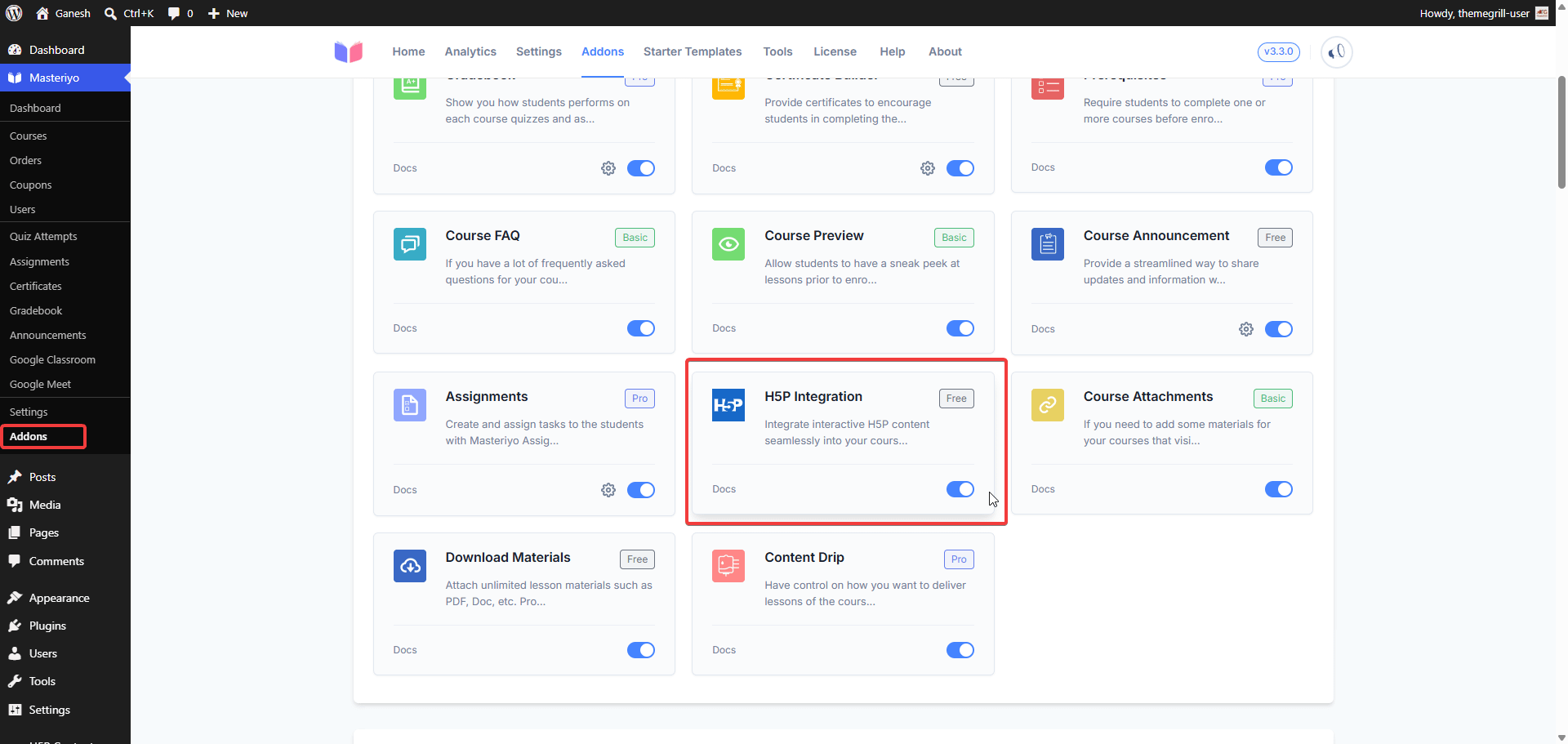
Note: If the H5P plugin is not active, Masteriyo displays an admin notice. The add-on stays inactive until the H5P plugin is installed and running.
Supported Content Types
For Content Embedding (Free)
Any H5P content type can be embedded in any description field that renders on the learn page — lessons, quizzes, individual questions, assignments, and Google Meet sessions. There are no restrictions on content type; Masteriyo converts the shortcode to a responsive iframe regardless.
For H5P Quizzes Pro
The H5P Question Bank only shows scoreable content types — those that produce a grade Masteriyo can capture and display:
| Content Type | Content Type |
|---|---|
| Multiple Choice | True/False Question |
| Fill in the Blanks | Drag and Drop |
| Mark the Words | Drag Text |
| Essay | Summary |
| Image Hotspot Question | Find Multiple Hotspots |
| Speak the Words | Question Set |
| Single Choice Set | Arithmetic Quiz |
| Memory Game | Crossword |
| Flashcards | Speak the Words Set |
Note: Only content types installed on your WordPress site appear in the H5P Question Bank. Pure presentational types (Interactive Video, Course Presentation, Timeline, etc.) are excluded — they produce no score, but can still be embedded freely in lessons.
Embedding H5P Content (Free)
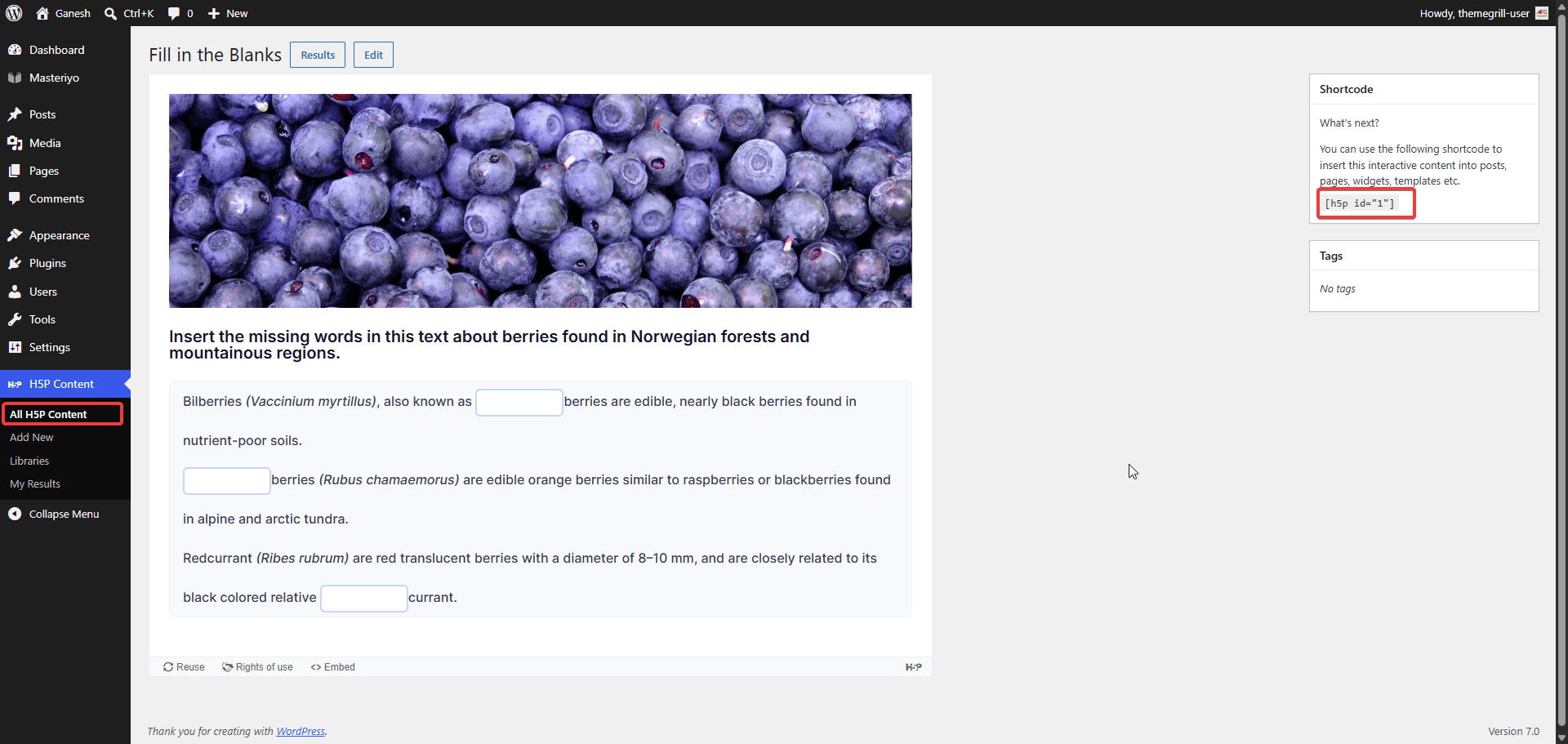
Every H5P item you create has a unique shortcode shown in H5P Content > All H5P Content (e.g. [h5p id="10"]).
-
Open any content item that has a Description field — a lesson, quiz, question, assignment, or Google Meet session.
-
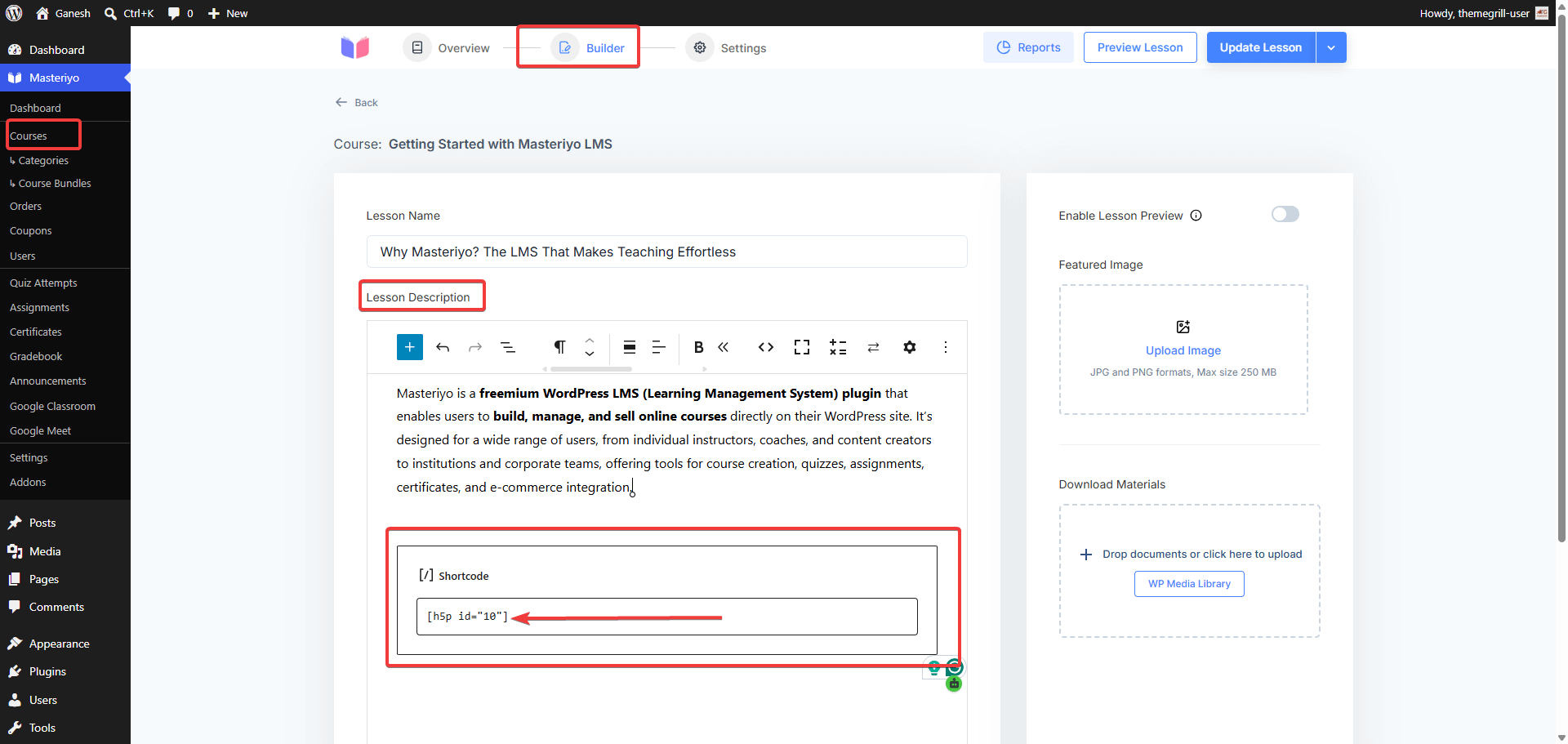
In the Description, paste the H5P shortcode:
- Classic Editor — paste directly into the text area.
- Block Editor — add a Shortcode block, then paste the shortcode inside it.
[h5p id="10"] -
Click Publish or Update to save.
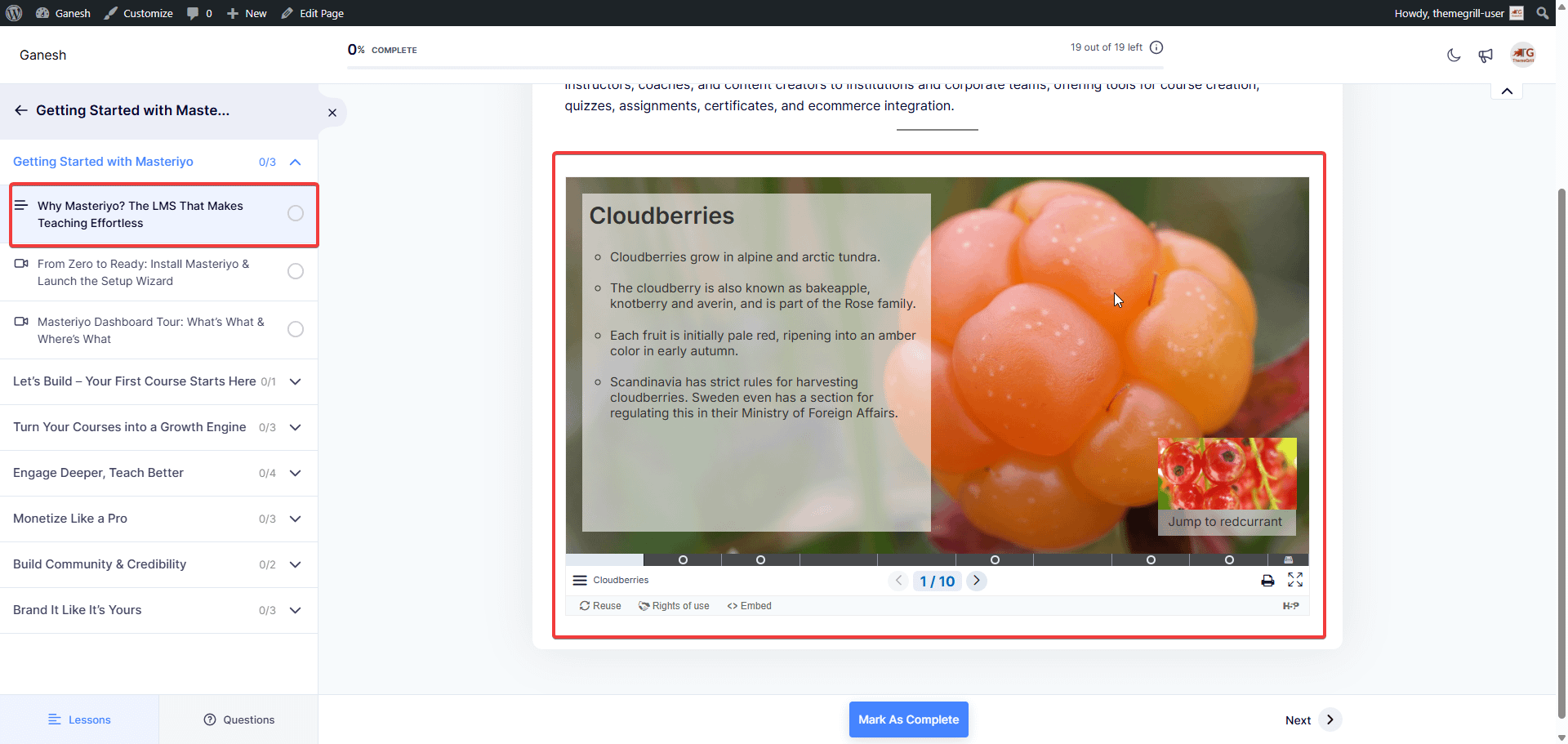
On the learn page, Masteriyo silently replaces the shortcode with an iframe. The iframe resizes itself to match the content height so there is no fixed blank space or scrollbar.
H5P Quizzes Pro
With Masteriyo Pro, the H5P Integration add-on introduces the H5P Quiz — a first-class curriculum item that sits alongside lessons and standard quizzes inside a course section. Pro also enables H5P's built-in content-state saving, so students can pause an activity and resume from where they left off when they return.
Creating an H5P Quiz Pro
- Go to Masteriyo > Courses, open the course, and click the Builder tab. Scroll to the section where you want to add the quiz.
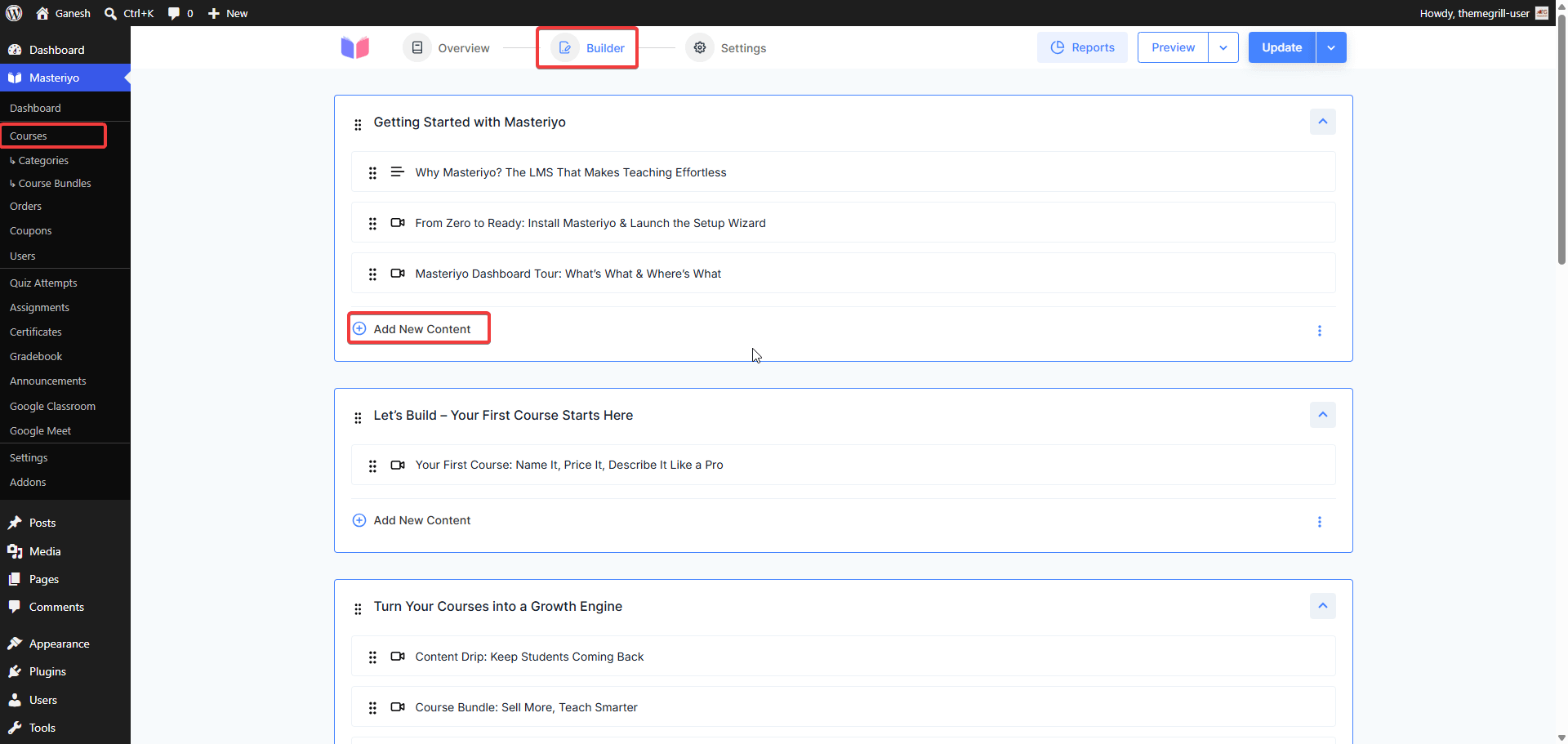
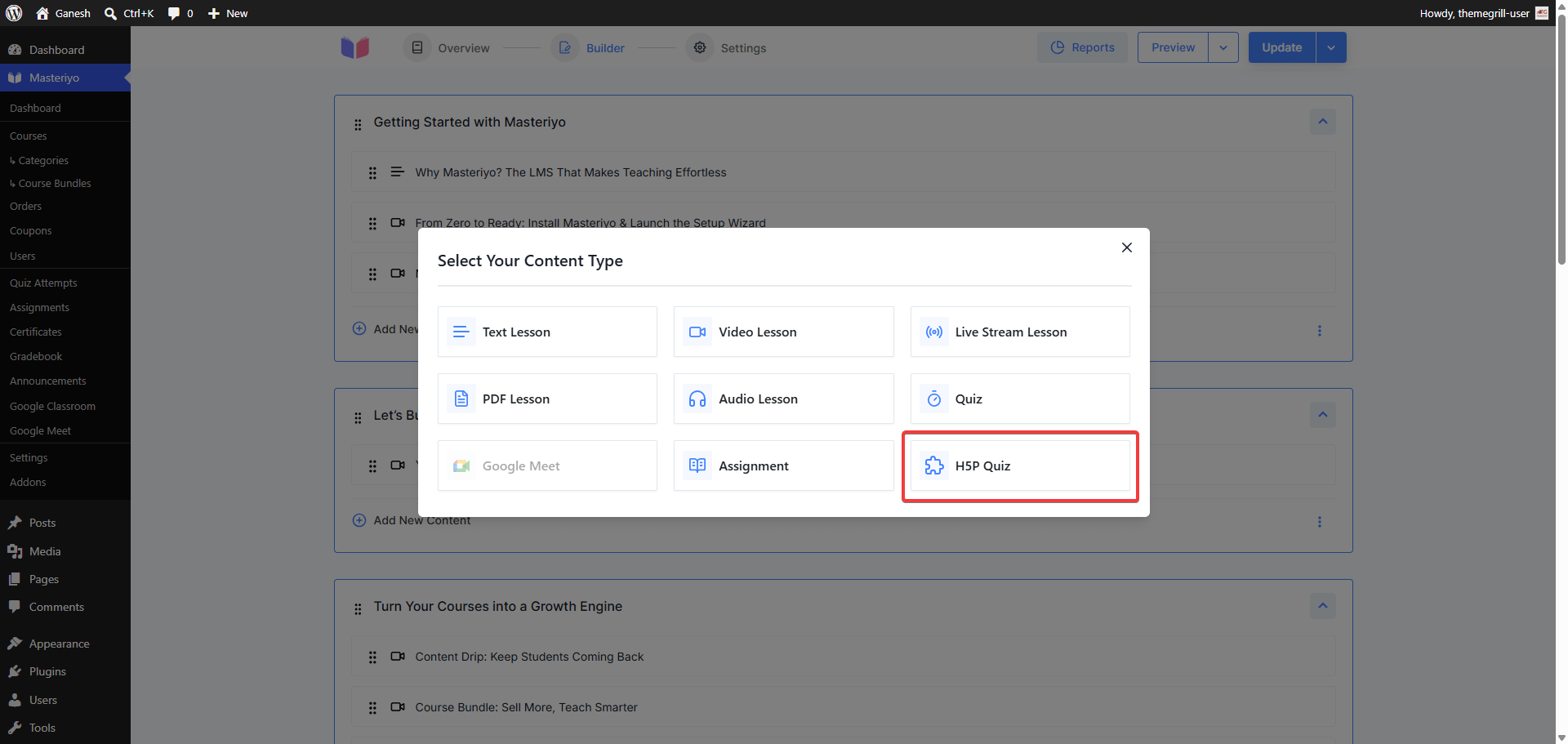
- Click Add New Content inside that section. A Select Your Content Type modal opens — choose H5P Quiz.
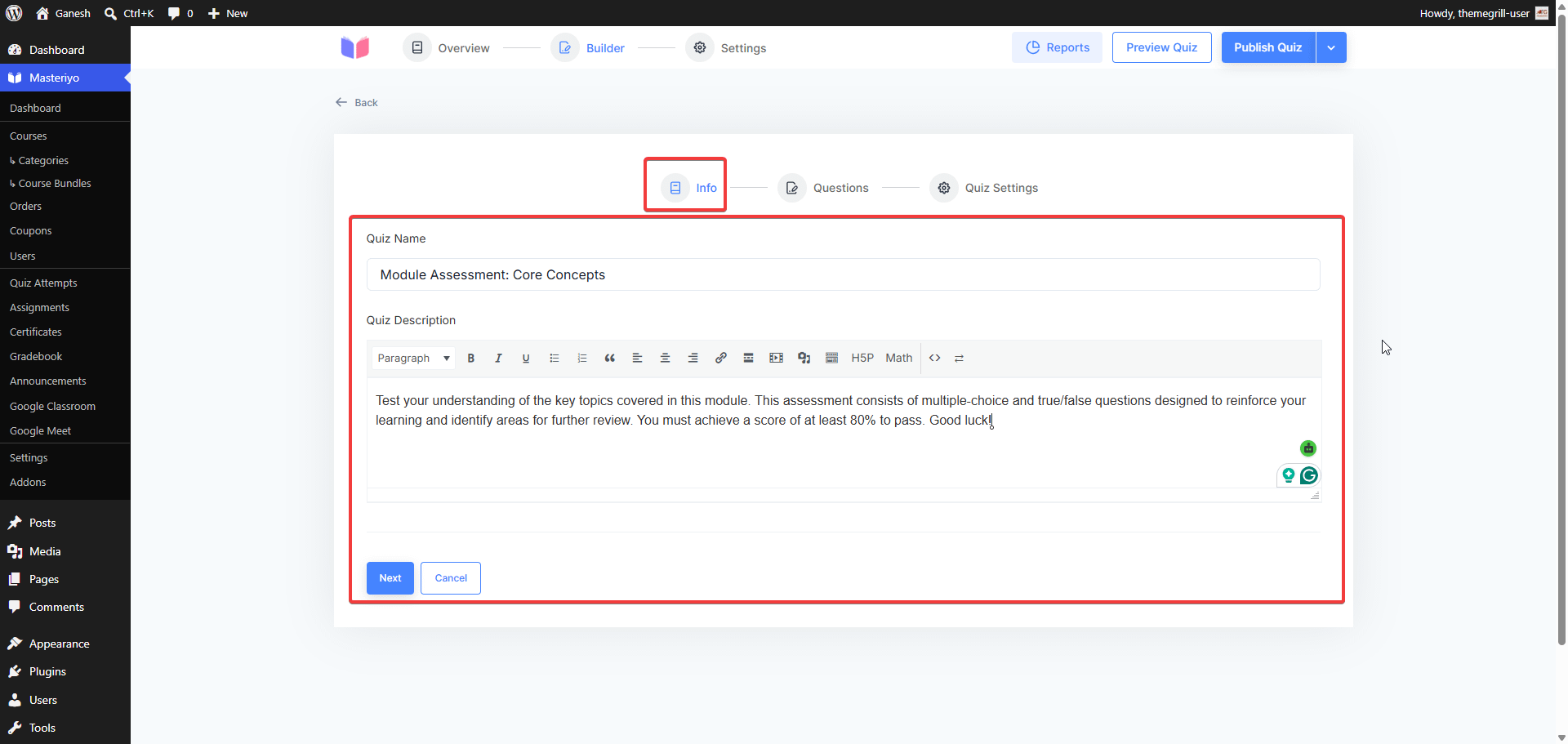
- The H5P Quiz editor opens with three tabs — Info, Questions, and Quiz Settings. Configure each tab as described below.
Info Tab
Enter the quiz Name and an optional Description.
Questions Tab
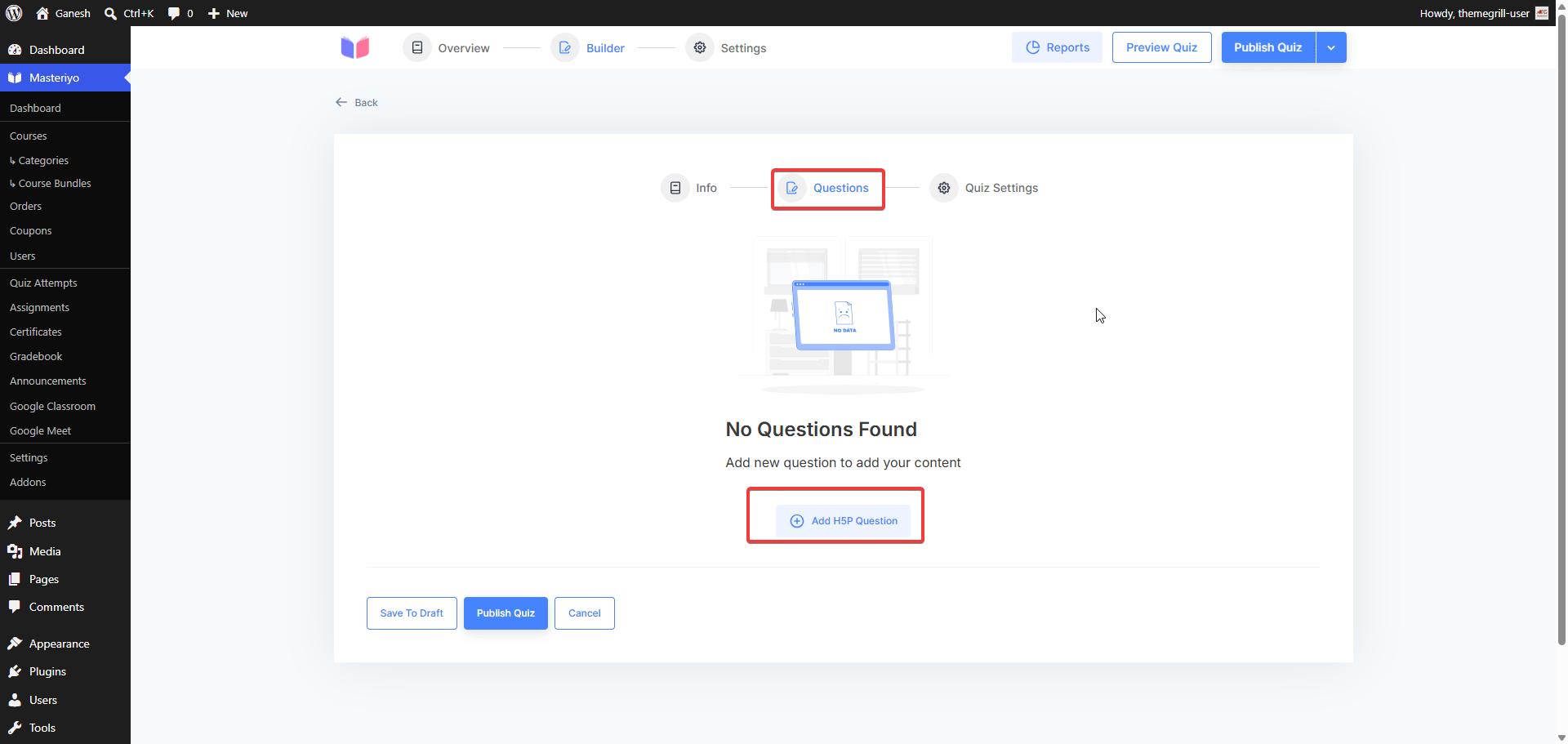
- Click Add H5P Question to open the H5P Question Bank.
- Browse or search your H5P library. Each item shows its title and content-type badge.
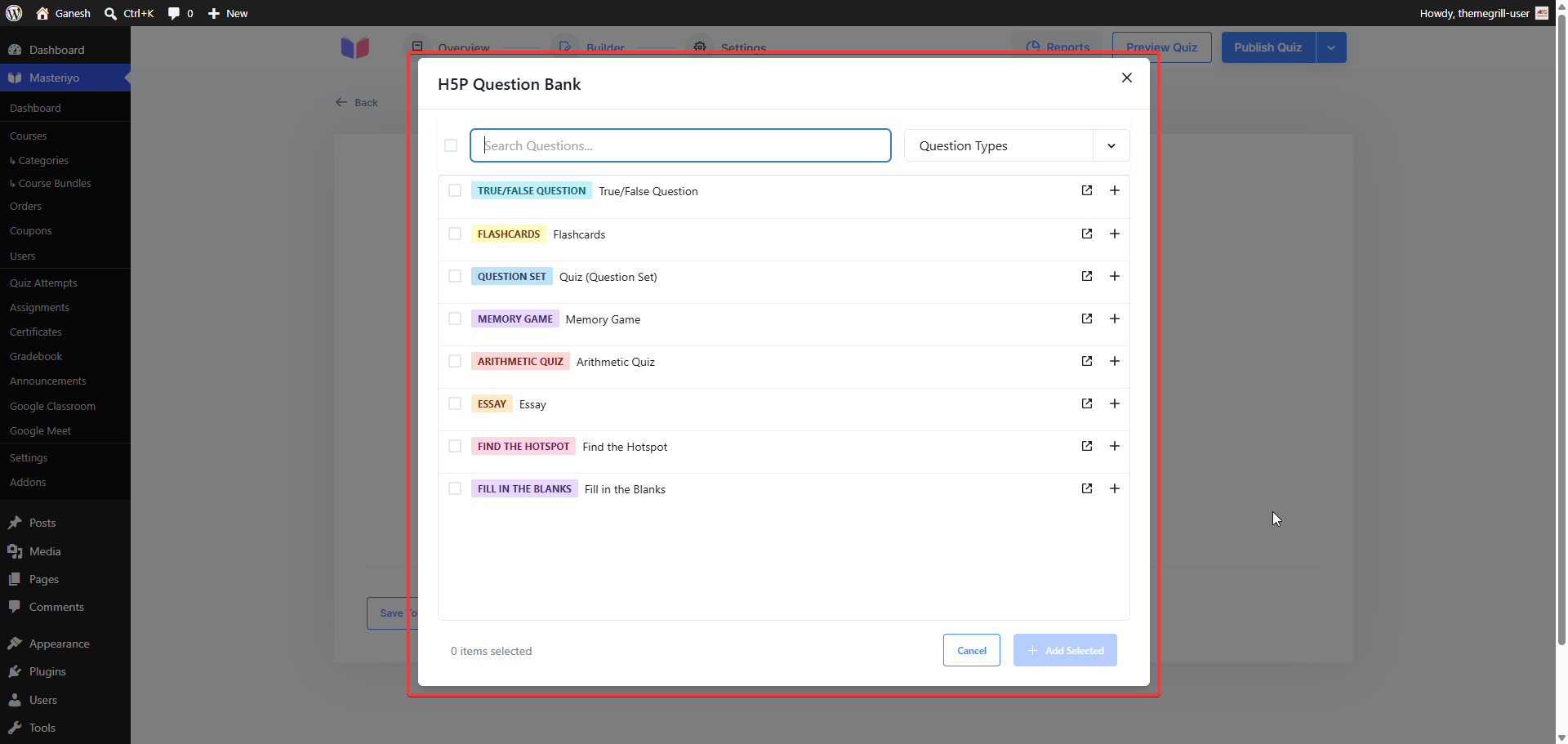
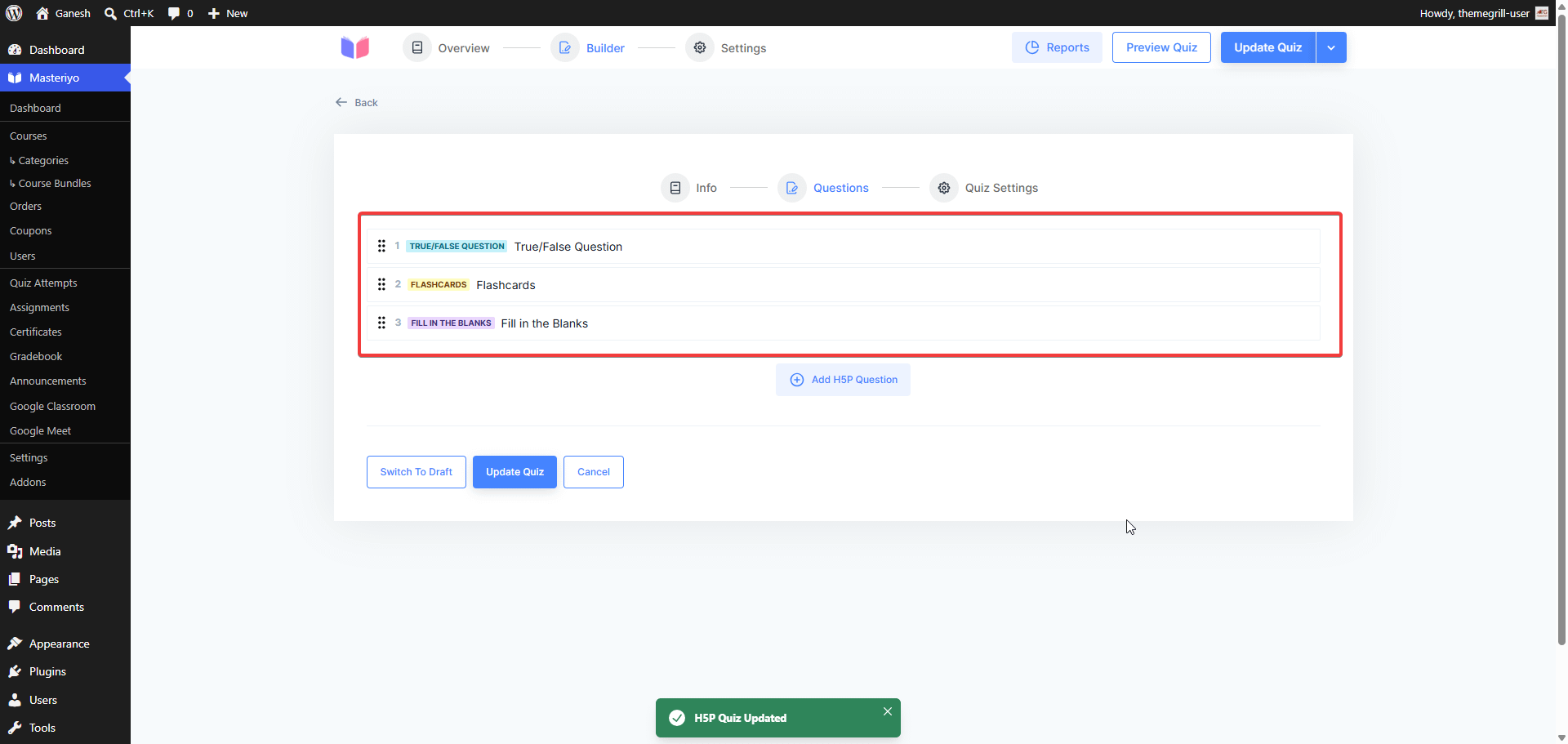
- Select one or more items and click Add. Items appear as an ordered list inside the quiz.
- Drag to reorder or click the trash icon to remove an item.
Quiz Settings Tab
Configure grading and display behaviour before saving.
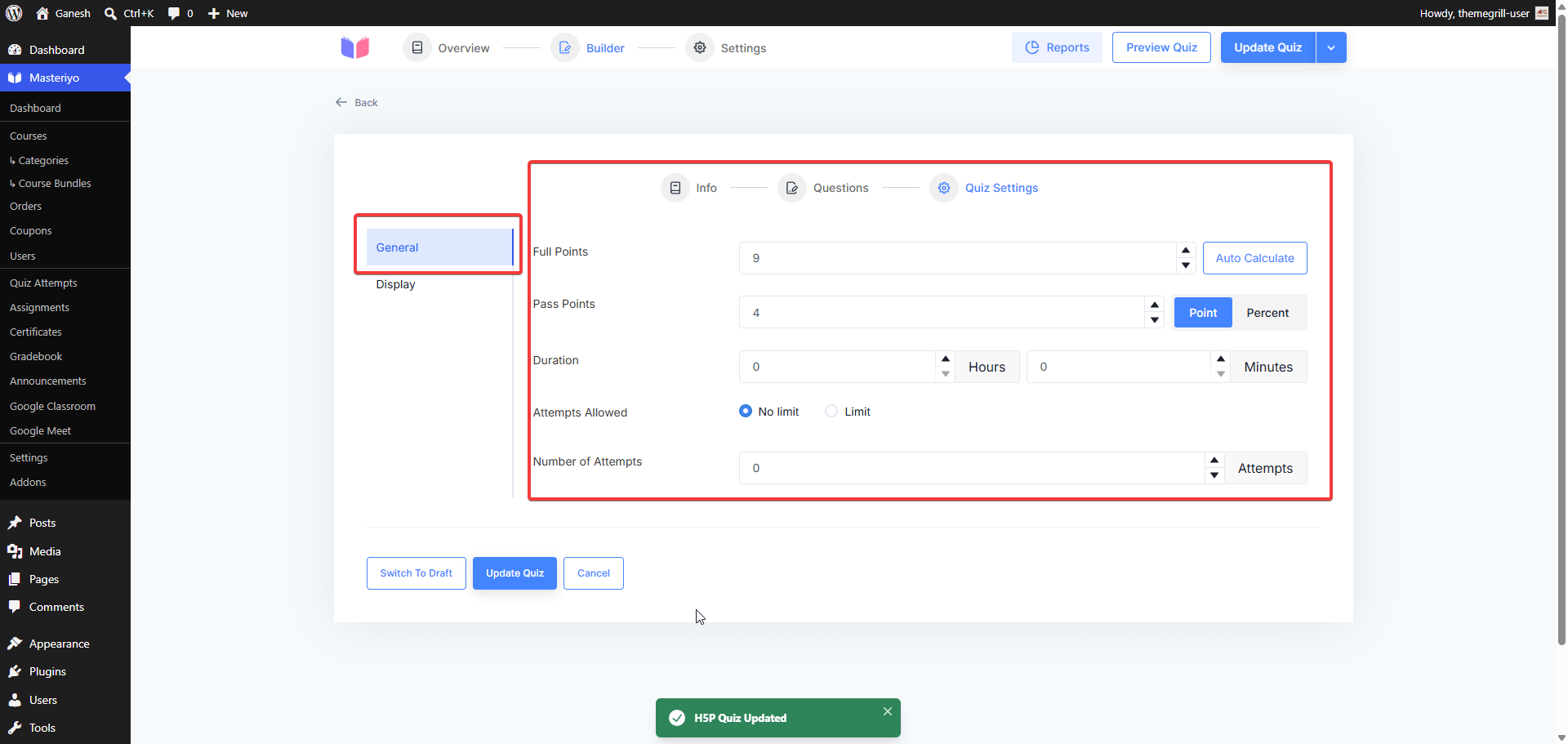
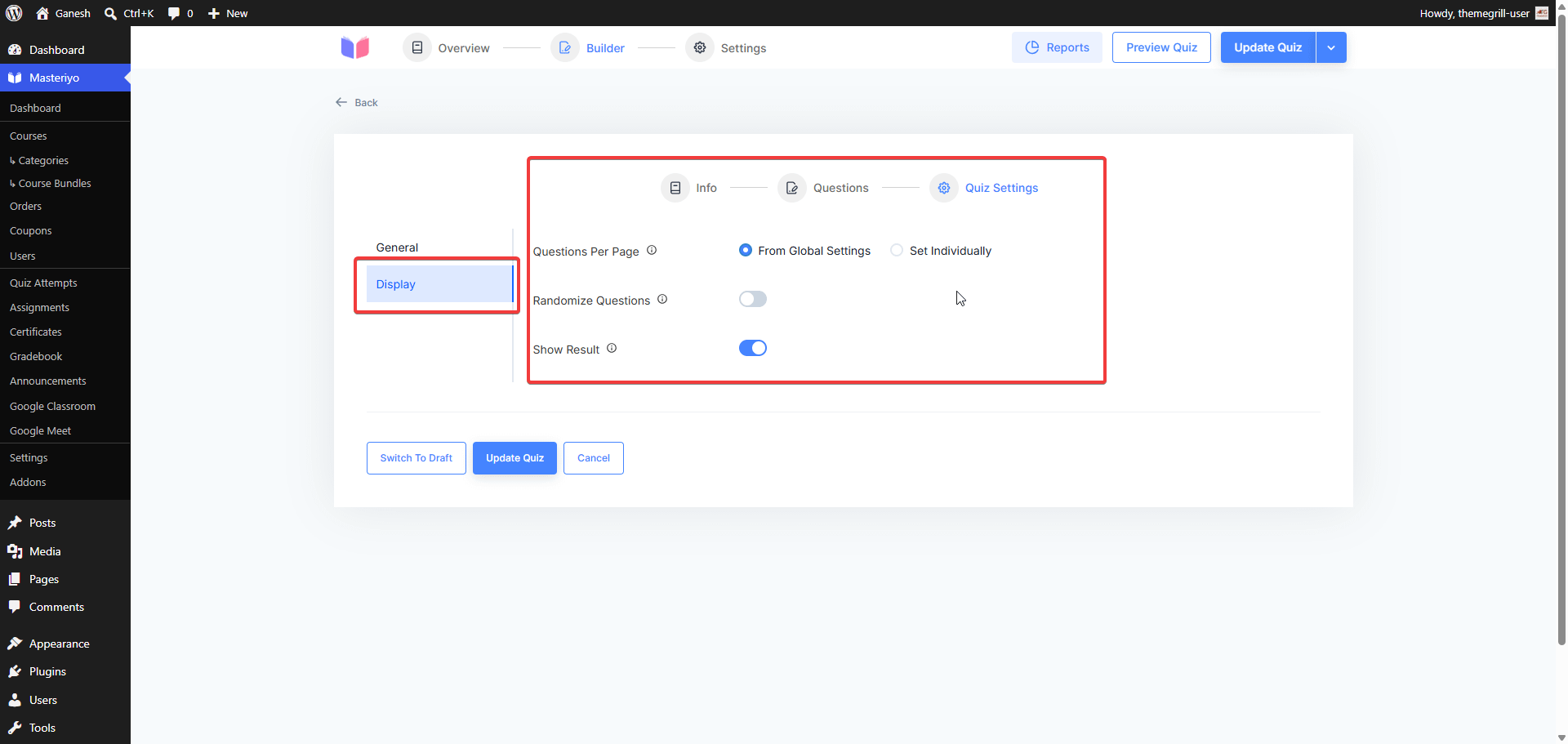
General
| Setting | Description |
|---|---|
| Full Points | Total points the quiz is worth. Click Auto Calculate to pull the maximum score directly from the selected H5P content — no manual counting needed. |
| Pass | The score required to pass. Toggle between Point and Percent as the unit. |
| Duration | Optional time limit in hours and minutes. When set, a countdown timer appears on the learn page. |
| Attempts Allowed | Set to No limit for unlimited retakes, or Limit to cap the number of attempts. |
| Number of Attempts | Visible when Limit is selected — the exact cap on retakes. |
Display
| Setting | Description |
|---|---|
| Questions Per Page | From Global Settings inherits the site-wide default; Set Individually lets you override it for this quiz. |
| Randomize Questions | Shuffles question order on each new attempt so students cannot memorise the sequence. |
| Show Result | Displays the result screen (score, pass/fail, per-question breakdown) after the student submits. |
- Click Add H5P Quiz to save and return to the builder.
The quiz now appears in the curriculum sidebar on the learn page with its name and, if set, its duration.
Taking an H5P Quiz Pro
Students open the H5P Quiz from the curriculum sidebar. The quiz intro screen shows the quiz name, description, and a summary bar with duration, number of questions, total points, and pass points.
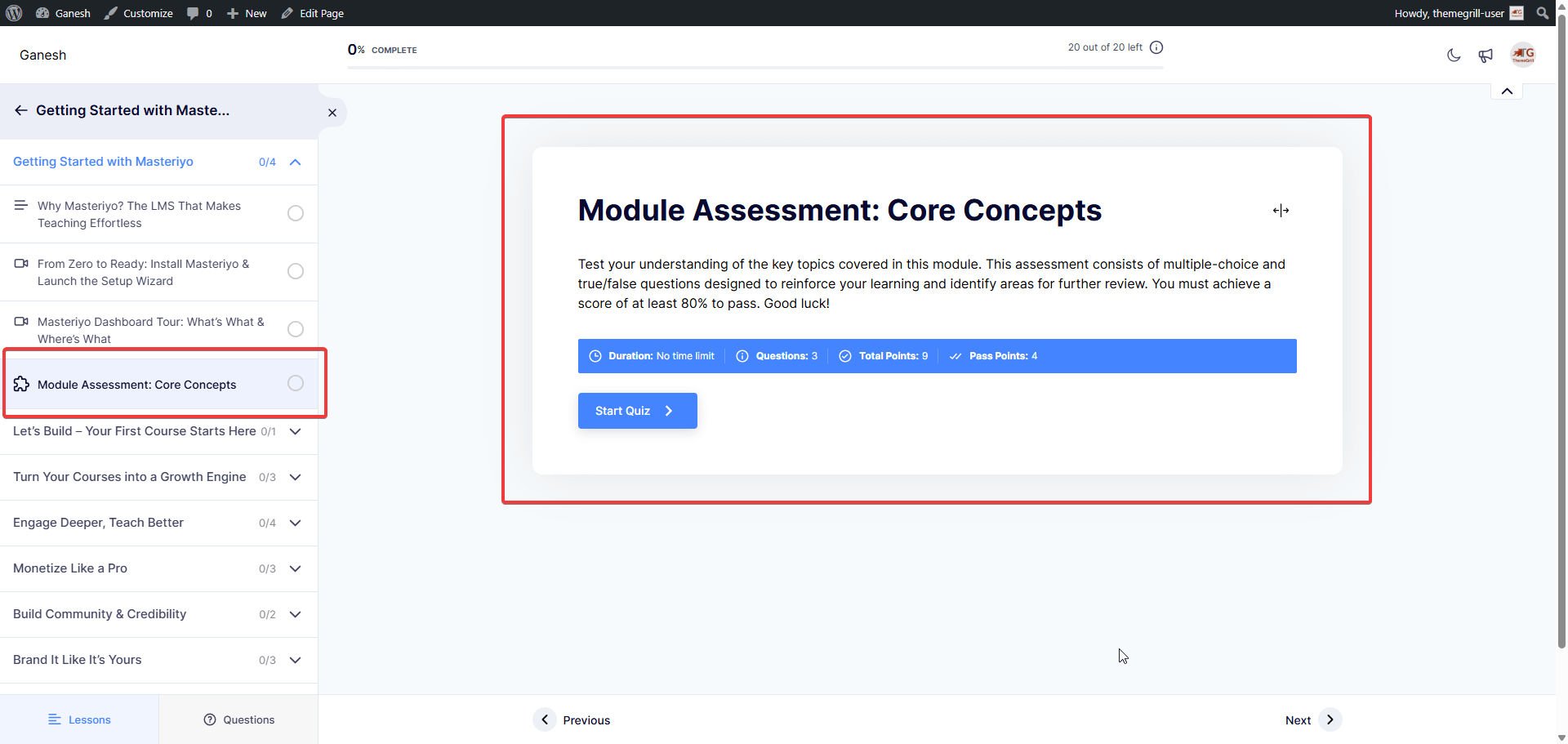
Click Start Quiz to begin. Each H5P question loads in its own iframe, identical to the free lesson embedding but wired up for score capture.
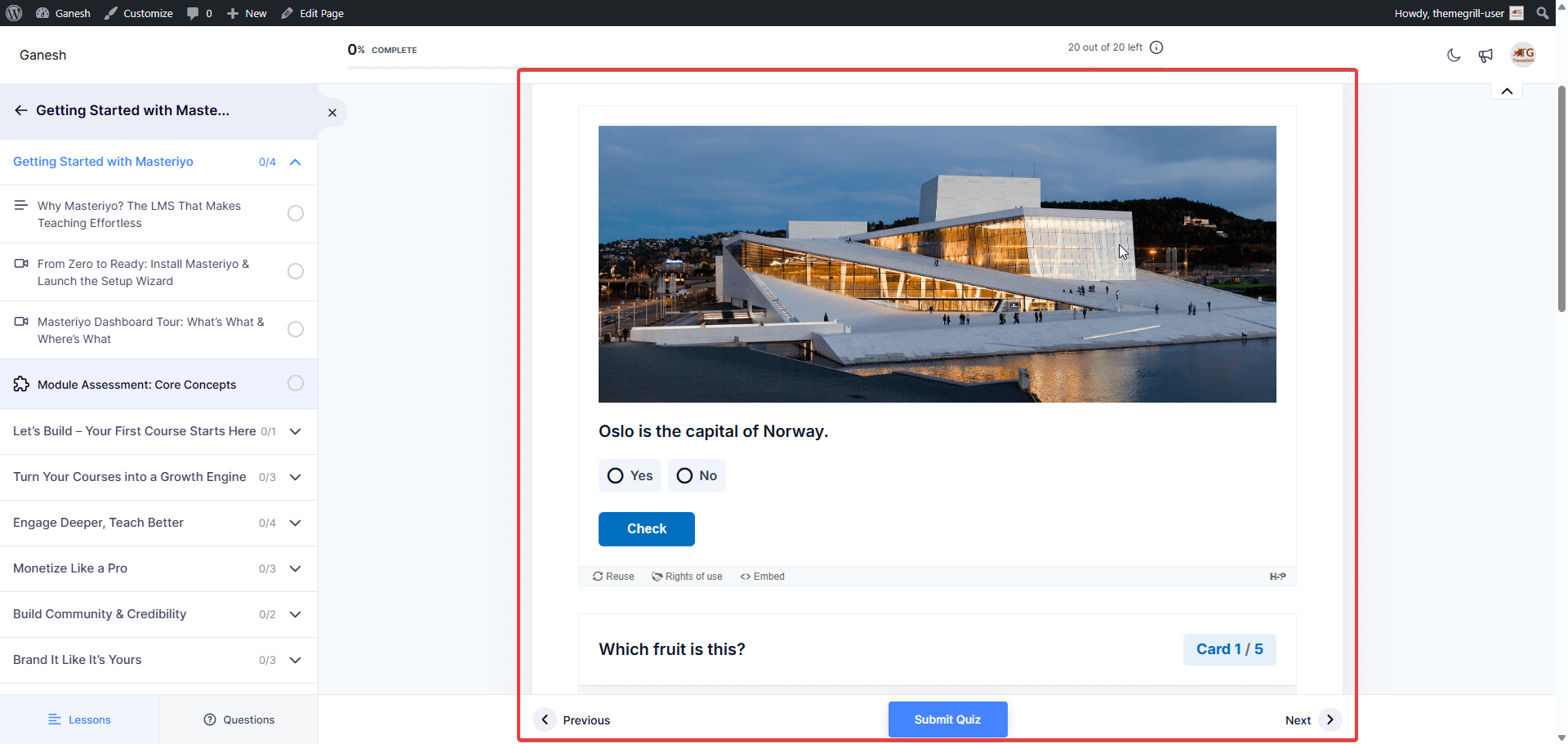
When Duration is configured, a countdown timer is displayed. When time expires, the quiz is auto-submitted.
After answering all questions, the student clicks Submit. If Show Result is enabled, a result screen appears showing a summary table:
| Metric | Description |
|---|---|
| Total Questions | Number of H5P items in the quiz |
| Answered Questions | Number of items the student interacted with |
| Total Attempts | How many times the student has attempted this quiz |
| Total Points | Maximum possible score |
| Earned Points | Score the student achieved |
| Result | Pass or Fail badge with percentage |
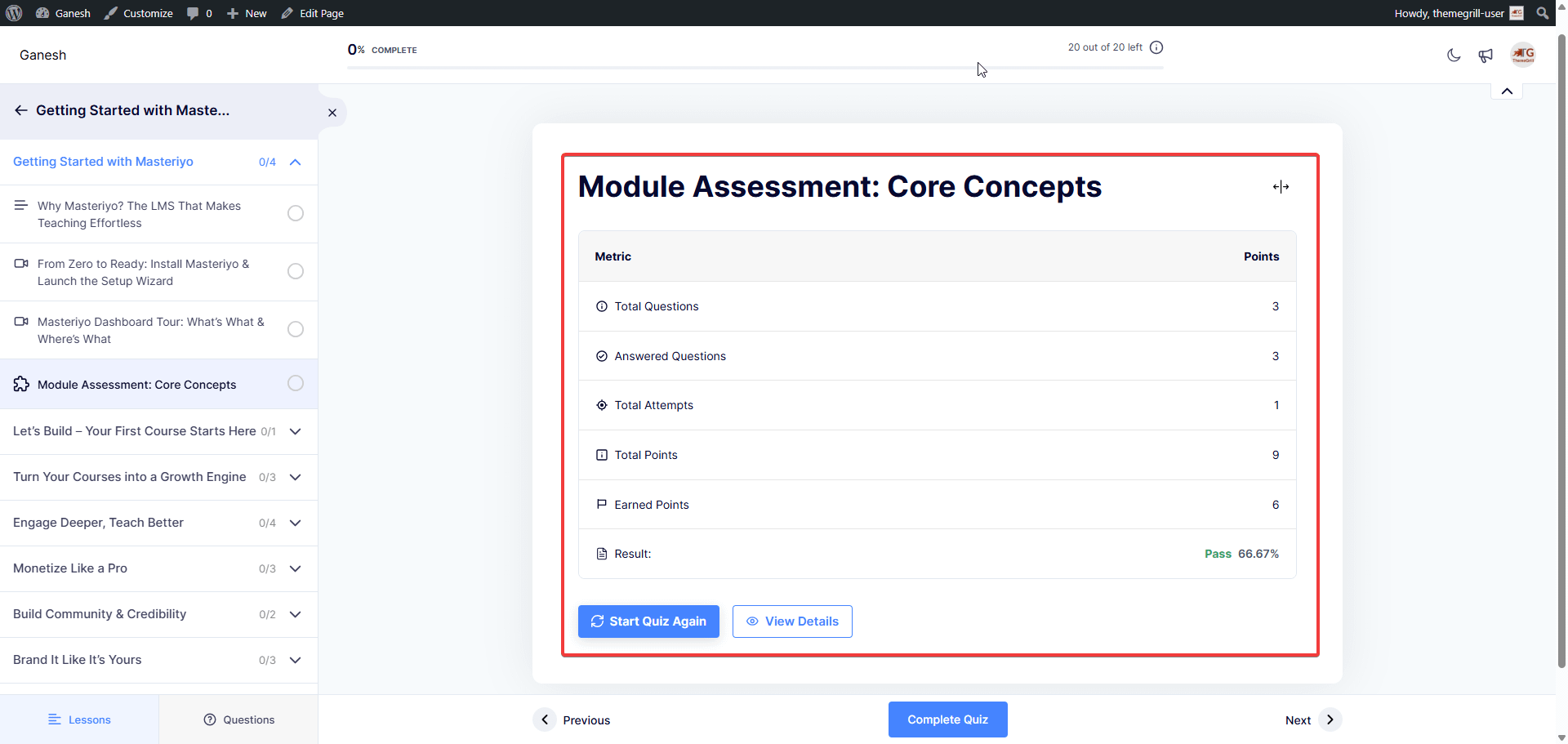
From the result screen the student can Start Quiz Again (if retakes are allowed) or click Complete Quiz to mark the item as complete and continue through the course.
Viewing H5P Quiz Attempts Pro
H5P Quiz attempts are visible in two places. Both surfaces share the same Default / H5P Quiz type dropdown that separates H5P attempts from standard Masteriyo quiz attempts.
Admin and Instructor — Masteriyo > Quiz Attempts
Go to Dashboard > Masteriyo > Quiz Attempts. The first dropdown defaults to Default (standard quizzes). Select H5P Quiz to switch the entire table — including the student search and the quiz filter — to show only H5P Quiz attempts.
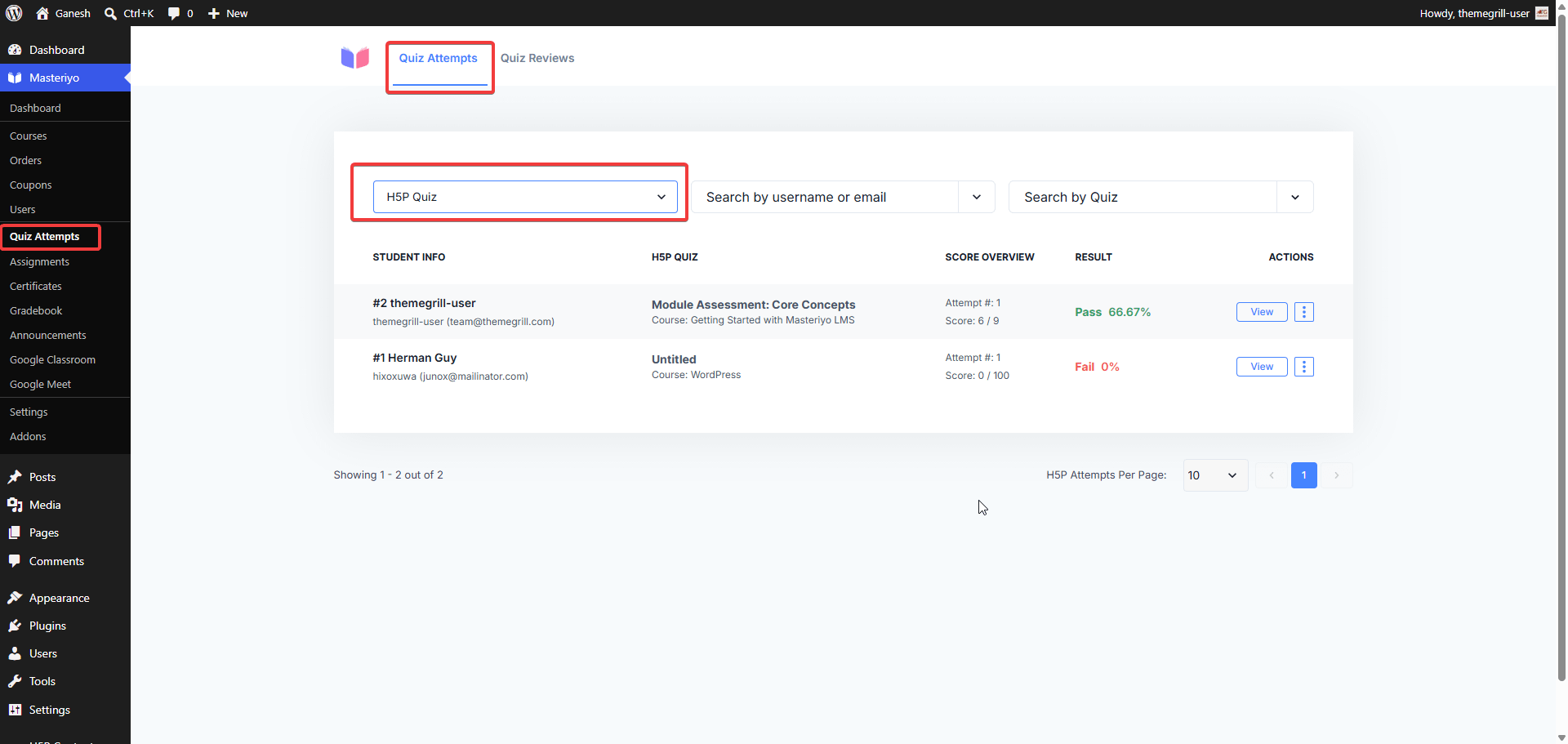
Each row in the table shows:
- Student name and email
- Quiz name and course name
- Score Overview — attempt number and score (earned / total points)
- Result — pass/fail badge with percentage
- Actions — View to open the full attempt detail, plus a context menu
Student — Your Quiz Attempts (Account page)
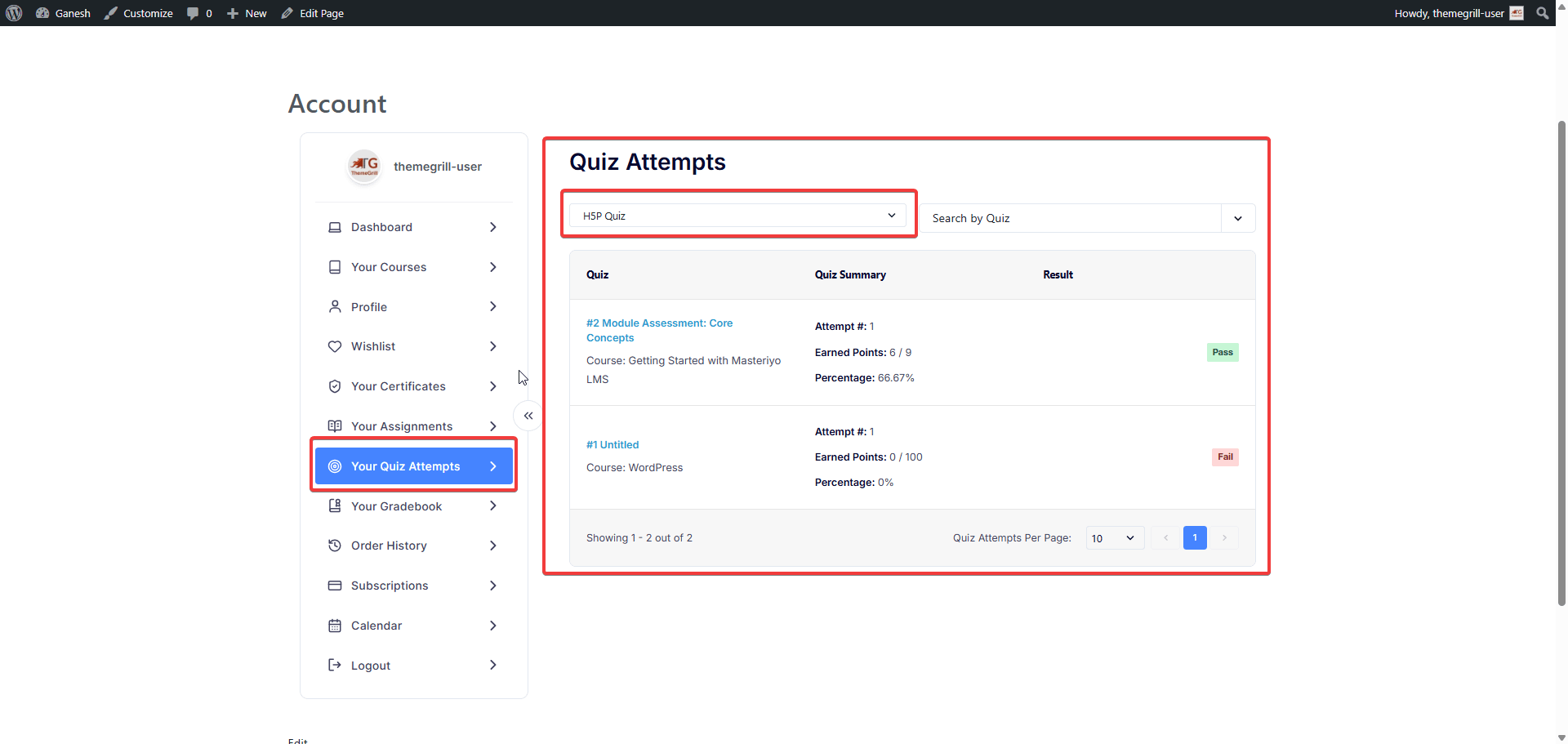
Students can view their own attempts from the frontend account page by navigating to Your Quiz Attempts in the account sidebar. Select H5P Quiz from the dropdown to filter the table to H5P attempts. The table columns are Quiz, Quiz Summary, and Result.
Analytics
H5P data is not included in Masteriyo Analytics. Attempt counts, scores, and pass/fail results from H5P Quizzes are recorded in Masteriyo > Quiz Attempts (use the H5P Quiz filter to view them), but they do not appear in Masteriyo's built-in analytics reports or course-level analytics widgets.
Was this article helpful to you?
Give us Rating
Last edited on July 28, 2026.
Edit this page