EnrollmentsNew
Manually enroll students into one or more courses without checkout — paste emails, pick existing students, or import a CSV, with bulk seat and order controls.
What is the Enrollments Screen?
Enrollments is a built-in, free screen for enrolling students into your courses without sending them through checkout. Use it when you're migrating students from another platform, honoring an offline payment, running a workshop, or granting access as a courtesy.
- Enroll into one or many courses at once
- Add students by pasting emails, picking existing students, or uploading a CSV
- Preview exactly who will be enrolled, reactivated, or skipped before anything happens
- Optionally create an order (free or at course price) for paid courses
- Manage, filter, and revoke existing enrollments from one list
This replaces the old Manual Enrollment add-on's popup flow. See Manual Enrollment for the previous Pro-only version.
Prerequisites
- Active installation of Masteriyo LMS
- Masteriyo Free or any paid plan — Enrollments is not gated behind a paid plan
Where to Find It
Go to Masteriyo → Enrollments in your WordPress admin sidebar, between Orders and Users.
Adding a New Enrollment
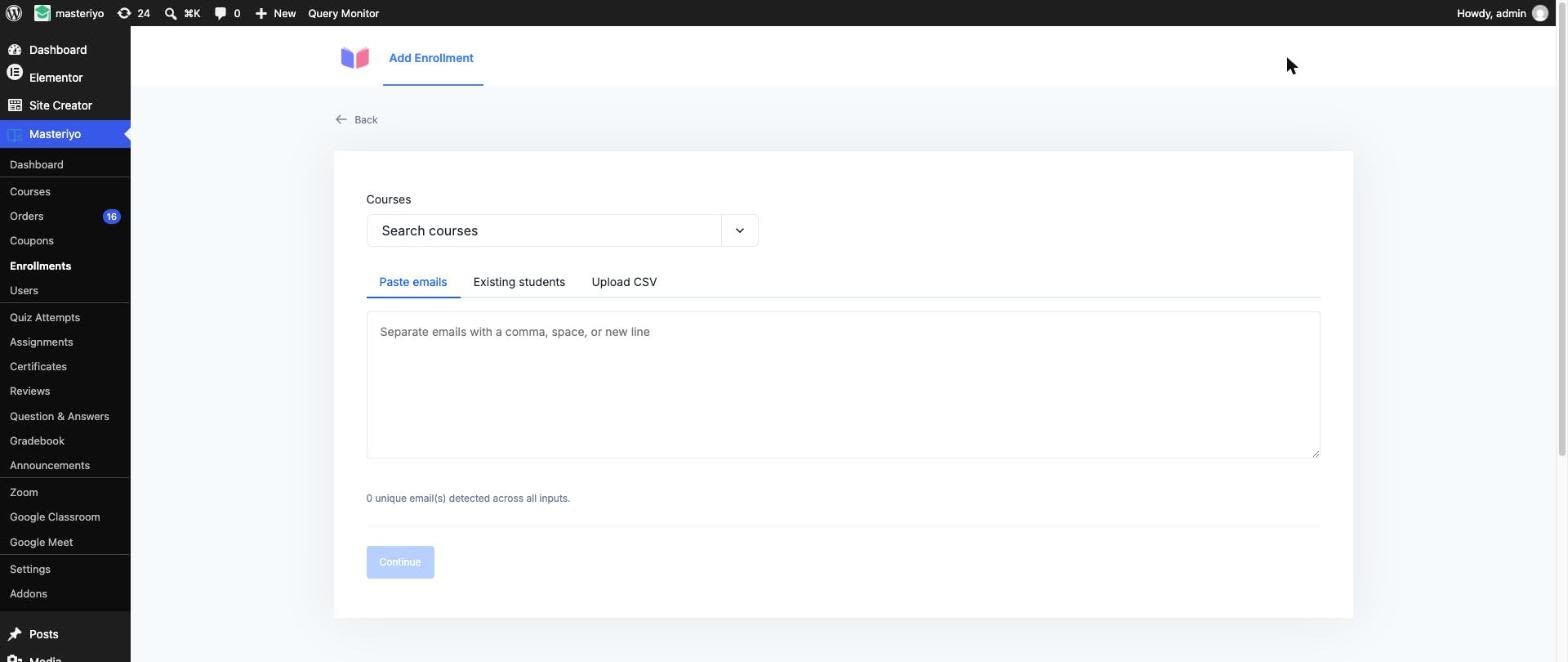
Click Add Enrollment from the Enrollments list to open the enrollment form.
Step 1: Choose Courses
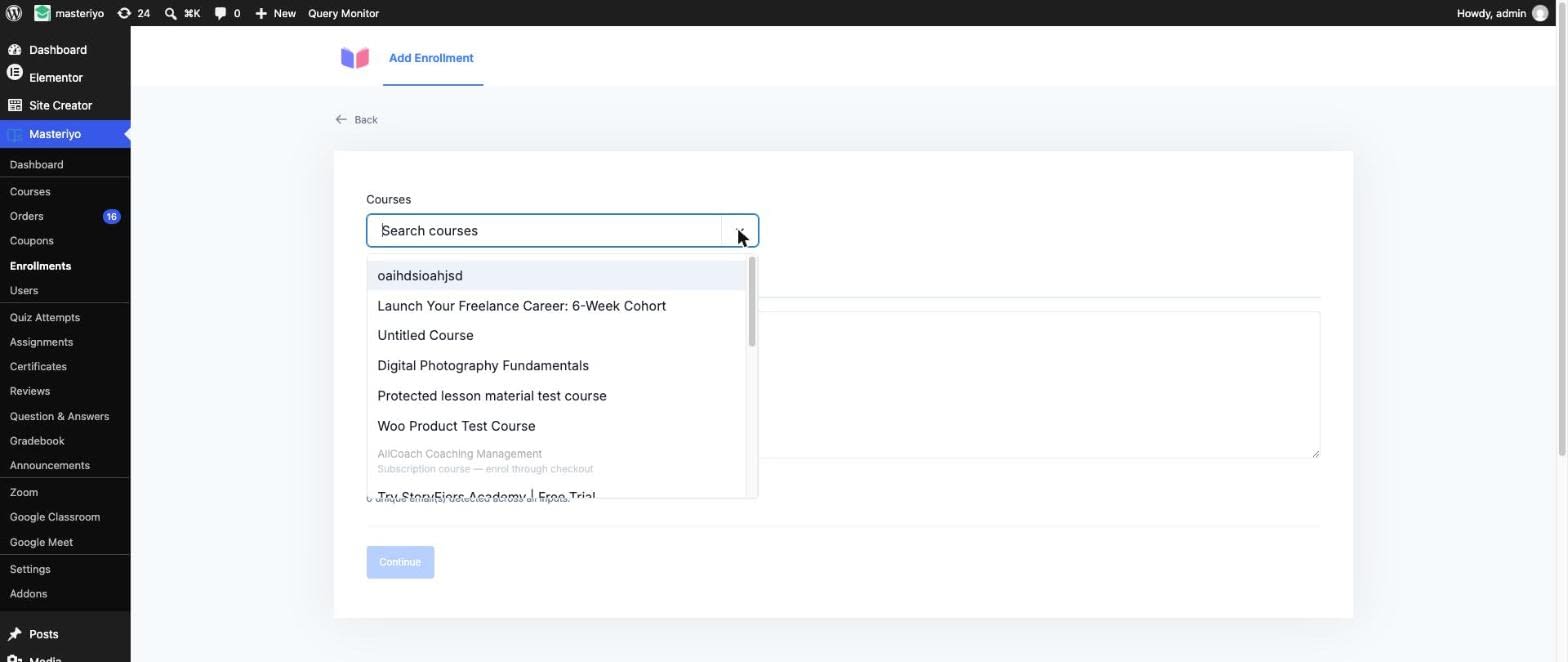
Search and select one or more courses from the Courses field. You can select multiple courses to enroll the same batch of students into all of them at once.
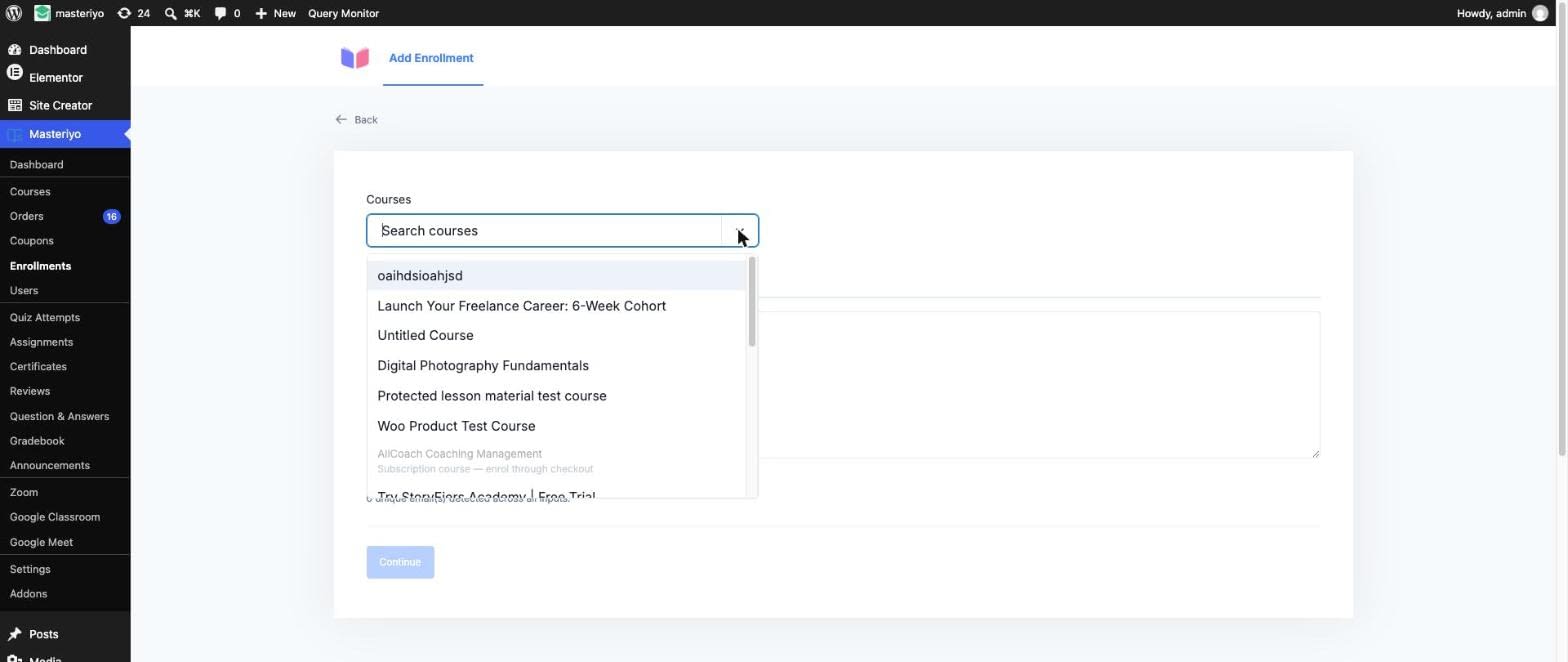
Courses with a recurring/subscription access mode can't be selected here — subscription courses always go through checkout so billing stays consistent.
Step 2: Add Students
Use any combination of three input methods — they merge into a single, de-duplicated email list:
Paste emails — type or paste addresses separated by a comma, space, or new line.
Existing students — click Pick students… to search and select from your site's registered users.
Upload CSV — upload a .csv file with email, course_id, first_name, last_name columns (only email is required; course_id is currently unused by the importer). Download the sample CSV from the panel to see the expected format. Rows without a valid email in the first column are skipped and reported.
Batches are capped at 100 emails per request and processed in chunks automatically — you don't need to split large lists yourself, but very large batches take a little longer as they're submitted in multiple requests.
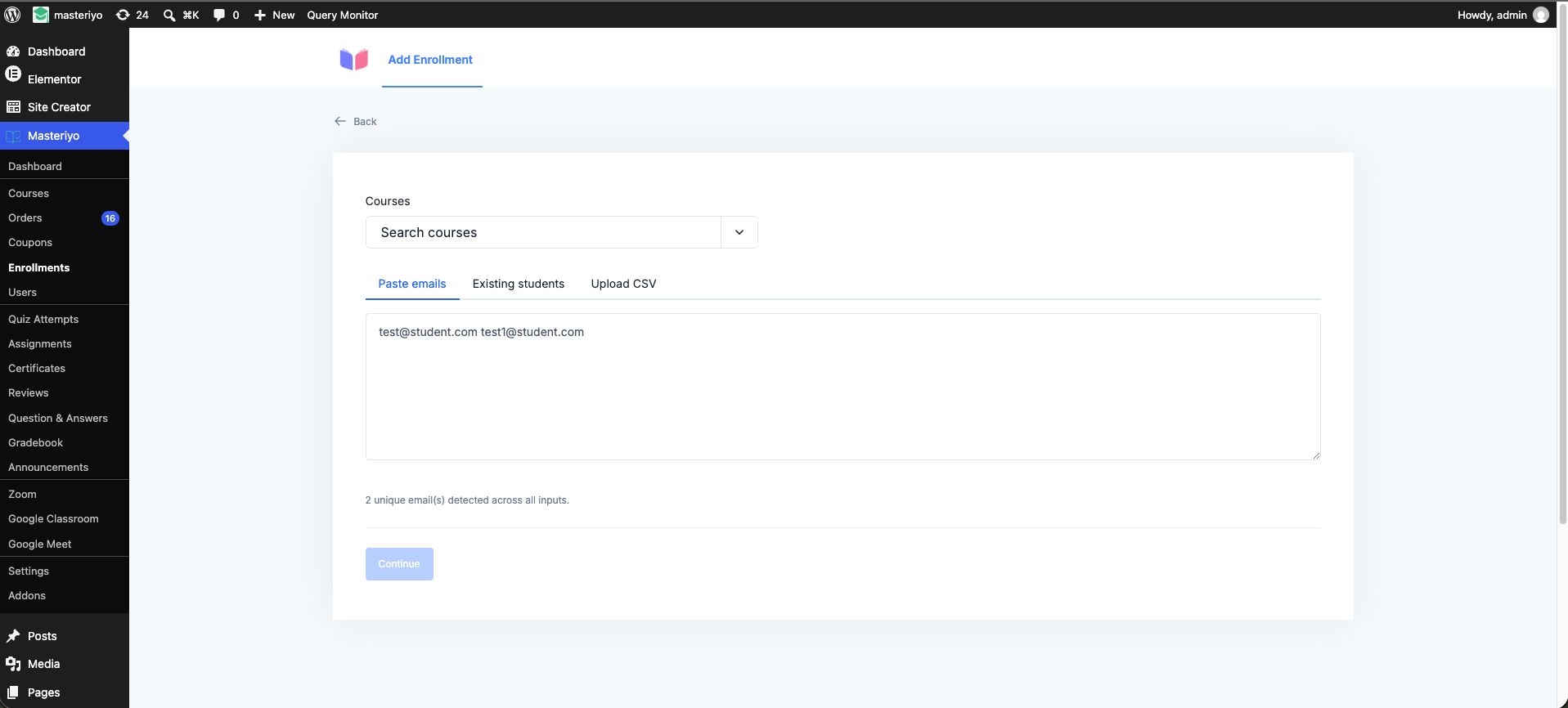
Once you have courses and at least one email, click Continue to preview the batch.
Step 3: Review the Preview
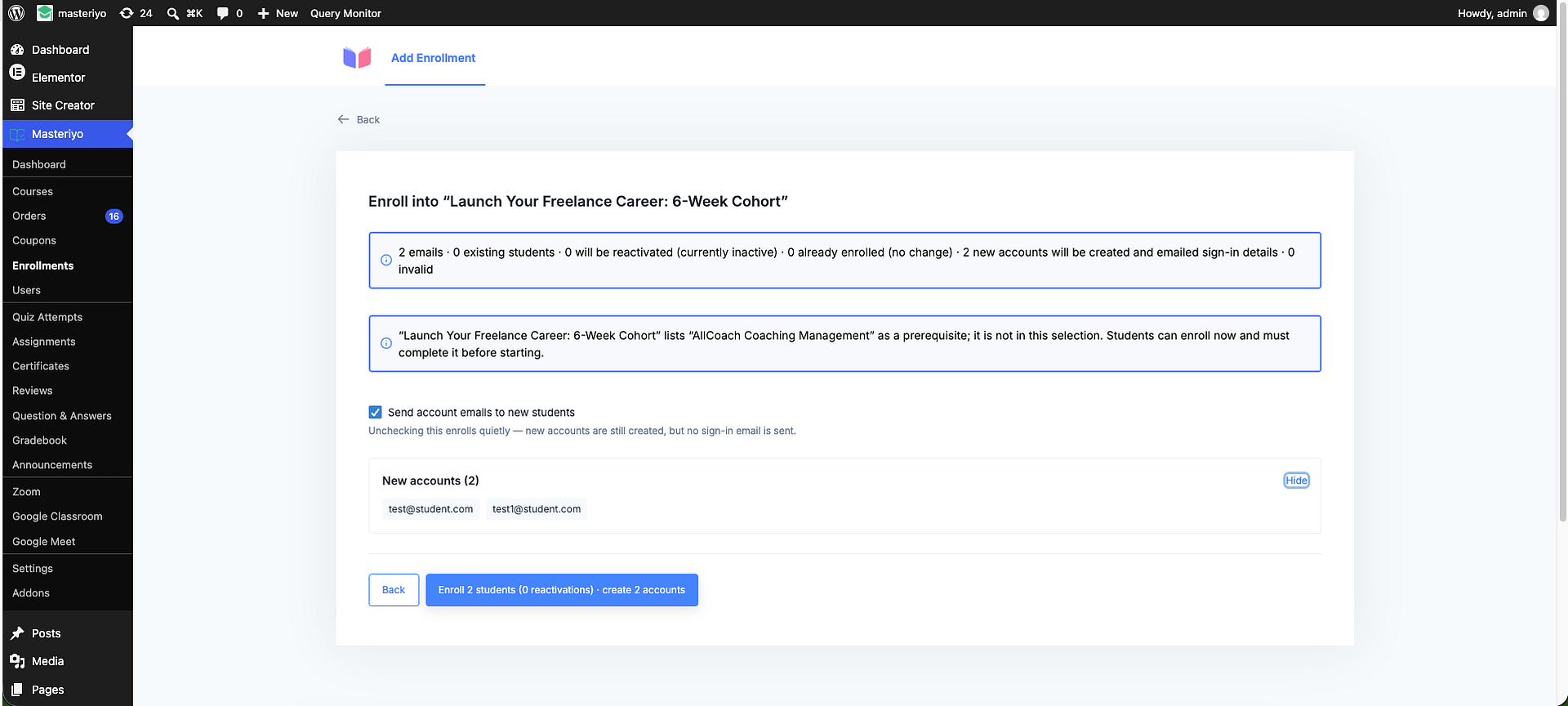
Before anything is written, Masteriyo previews the batch per course and groups every email into a bucket:
| Bucket | Meaning |
|---|---|
| Existing students | Already has an account, will be enrolled |
| Will be reactivated | Previously enrolled but currently inactive — enrollment will be reactivated |
| Already enrolled (no change) | Already actively enrolled — nothing happens |
| New accounts | No matching account — one will be created and the student emailed sign-in details |
| Account created earlier in this batch | Shares an email with an earlier course in this same batch — reuses that new account instead of creating a duplicate |
| Course is full | Course has a seat limit and no seats remain |
| Invalid | Blank or malformed email address |
Expand any bucket to see the individual email addresses in it.
If a course has no seats left, you'll see a warning with a checkbox to enroll anyway, exceeding the seat limit — leave it unchecked to skip those rows.
If a course is paid, enrolling here always grants free access. You can optionally choose to also create an order for every student in the batch:
- Do not create an order (default)
- Create an order at zero amount
- Create an order at the course price
If the course has prerequisites not included in this same batch, you'll see a note — students can still enroll now, but must complete the prerequisite before starting the course.
If the course grants time-limited access, a note shows how many days students will have before access expires.
Step 4: Confirm
Click Confirm Enrollment to run the batch. A progress bar shows chunk-by-chunk progress for large batches.
Step 5: Review Results
Each course shows a results summary — enrolled, reactivated, already enrolled, course full, invalid, failed, unknown, and recovered counts — followed by the full per-email list with each outcome and, where relevant, the order number created.
A batch that hits a network error mid-request doesn't assume the worst — Masteriyo re-checks those specific emails against live enrollment records and marks them Active now (recovered) if they actually went through, so you don't accidentally re-enroll someone who was already added.
Managing Existing Enrollments
The main Enrollments screen lists every enrollment across your courses, with filters for:
- Course
- Status — All / Active / Inactive
- Date range (enrolled after / before)
- Search by student name or email
Revoking Access
Click Revoke access on a row to deactivate a student's enrollment. This is reversible — re-enroll them any time from Add Enrollment. Select multiple rows and use Revoke selected to revoke access in bulk; only currently active rows can be selected.
Deleting an Enrollment
Click Delete enrollment permanently to remove the enrollment record entirely. Unlike Revoke, this cannot be undone — the row itself is removed rather than just deactivated.
Bulk delete is not offered — only bulk revoke. Permanent deletion is reserved for one enrollment at a time.
Frequently Asked Questions
Does this send checkout/payment emails?
No. Enrolling here bypasses checkout entirely. If you choose to create an order (for paid courses), it's created directly at zero or the full course price — no payment is collected through this flow.
Will students be notified?
Yes, by default. New accounts receive their sign-in details, and enrolled students receive the standard enrollment notification. This can be turned off per batch with the notification toggle on the compose step.
What happens if I enroll someone already enrolled?
They're grouped under Already enrolled (no change) in the preview and nothing changes for them in that course.
Can I enroll the same list of students into multiple courses at once?
Yes — select multiple courses in Step 1. Masteriyo previews and creates enrollments per course, and only creates one new account per email even if that email is new across several selected courses.
What if my CSV upload fails to parse?
Rows without a valid email in the first column are skipped and reported as skipped lines; if the file itself can't be read (locked, removed, or a cloud-storage placeholder), you'll see an error message asking you to check the file and try again.
Was this article helpful to you?
Give us Rating
Last edited on September 04, 2026.
Edit this page