Guided Course Setup
The one-time setup wizard that runs right after activating Masteriyo LMS — access choice, payment setup, starter templates, and a sample course.
What is Guided Course Setup?
Right after you activate Masteriyo LMS for the first time, you're automatically taken through a short setup wizard that configures only what your site actually needs — whether you're selling courses, taking payments, or just exploring.
Location: automatically opens after activation, at Masteriyo → Onboard
(wp-admin/admin.php?page=masteriyo-onboard). The redirect only fires once,
right after activation — if you close it or navigate away, you can return to
it any time at that URL, and it picks up right where you left off instead of
restarting.
The wizard has four steps: Welcome, Payments, Starter Templates, and Finish.
Step 1: Welcome
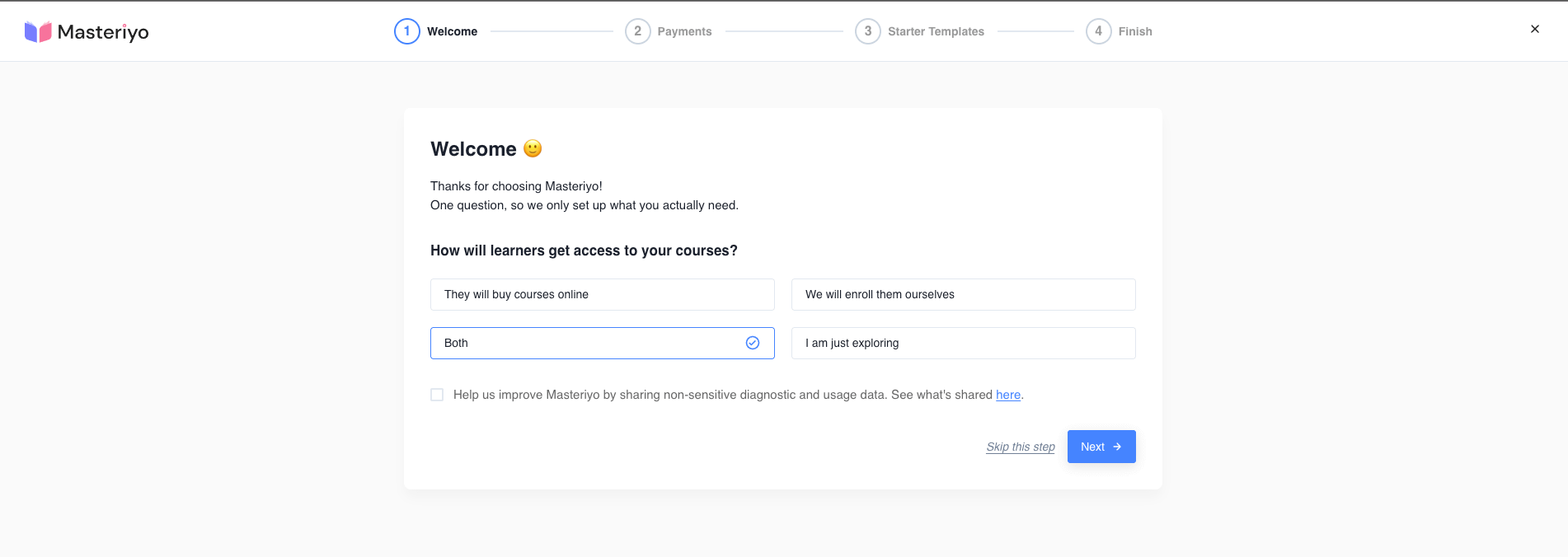
The wizard opens with a single question:
How will learners get access to your courses?
- They will buy courses online
- We will enroll them ourselves
- Both
- I am just exploring
Your answer decides whether the Payments step appears next — pick "I am just exploring" or "We will enroll them ourselves" and the wizard skips straight to Starter Templates.
This step also includes a usage-tracking consent checkbox: "Help us improve Masteriyo by sharing non-sensitive diagnostic and usage data." — see Allow Usage Tracking for what's included.
Step 2: Payments
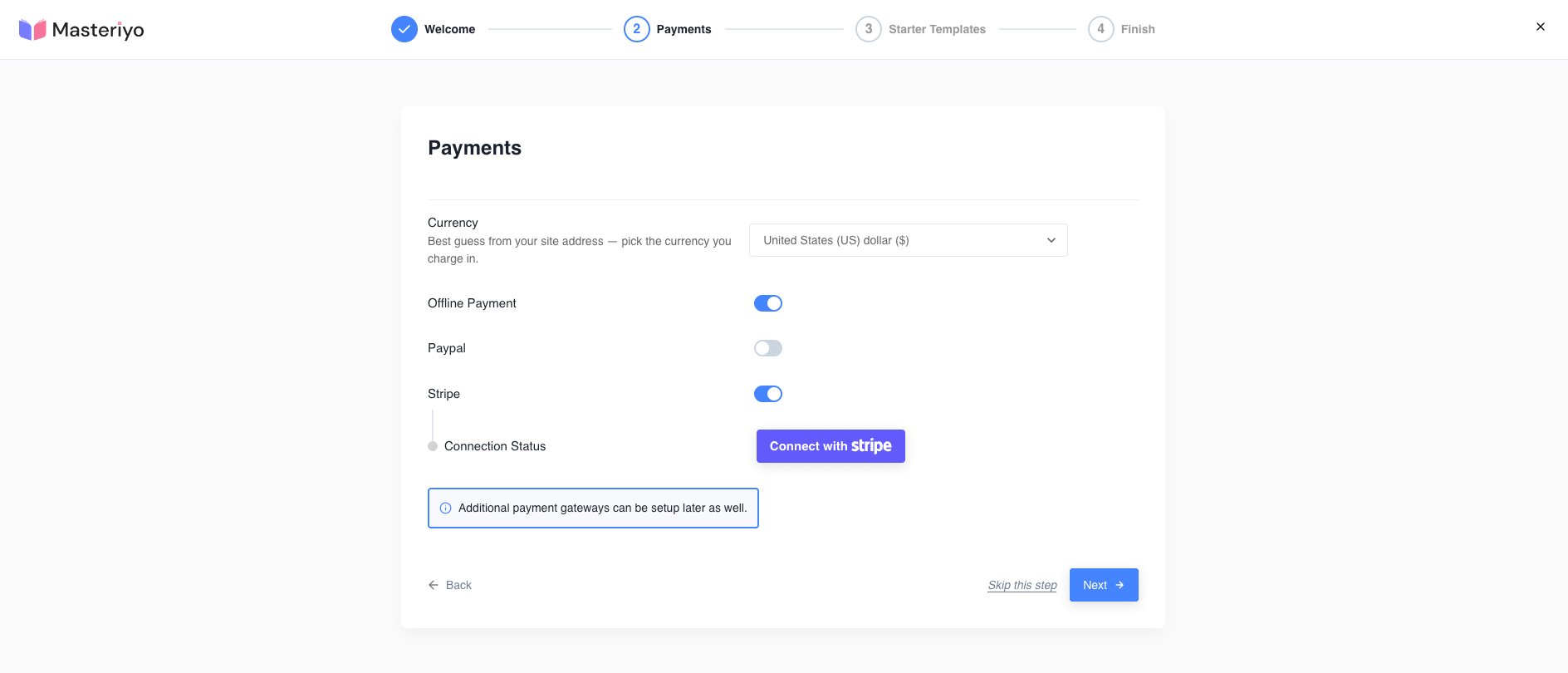
Shown only if you indicated you'll be selling courses. Fields:
- Currency — a dropdown pre-selected with a best guess based on your site's domain
- Offline Payment — a simple on/off toggle, no extra fields
- PayPal — toggle on to reveal a PayPal Email field for your PayPal business account
- Stripe — toggle on to activate the Stripe add-on (if not already active) and connect your account via the Connect with Stripe button
Additional payment gateways can always be set up later from Masteriyo → Settings → Payments.
Step 3: Starter Templates
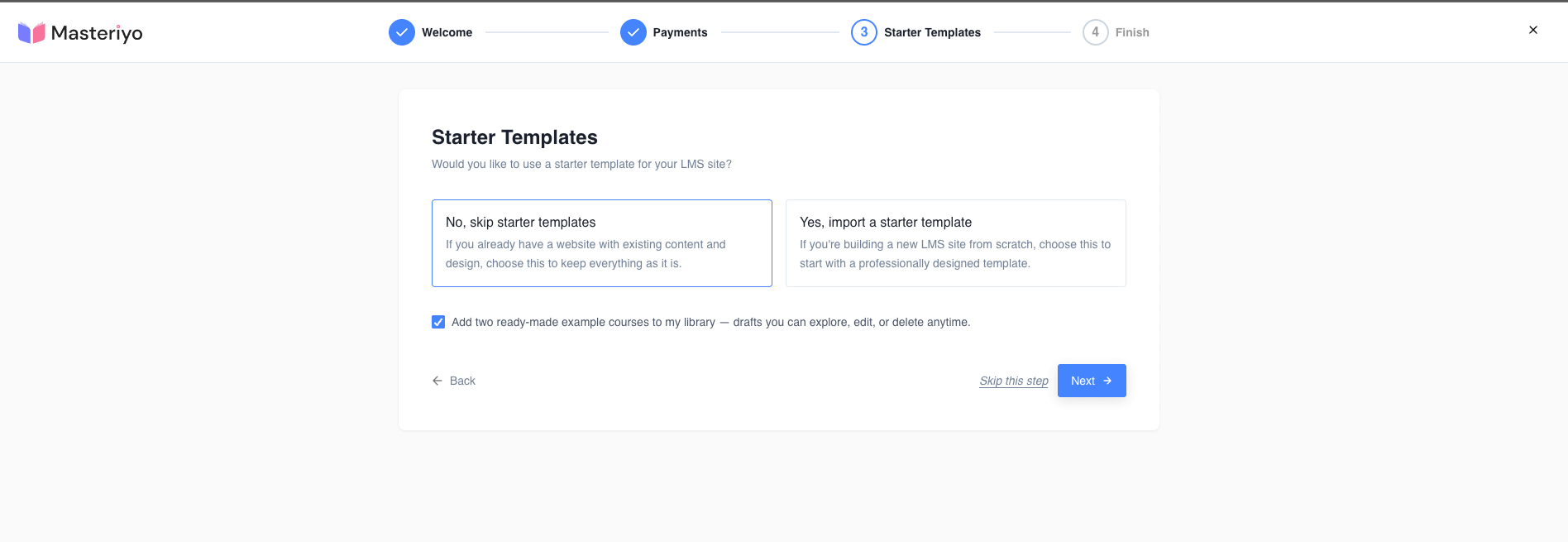
This step reuses the same Starter Templates picker available elsewhere in the plugin. You can:
- Skip — move straight to Finish without importing anything
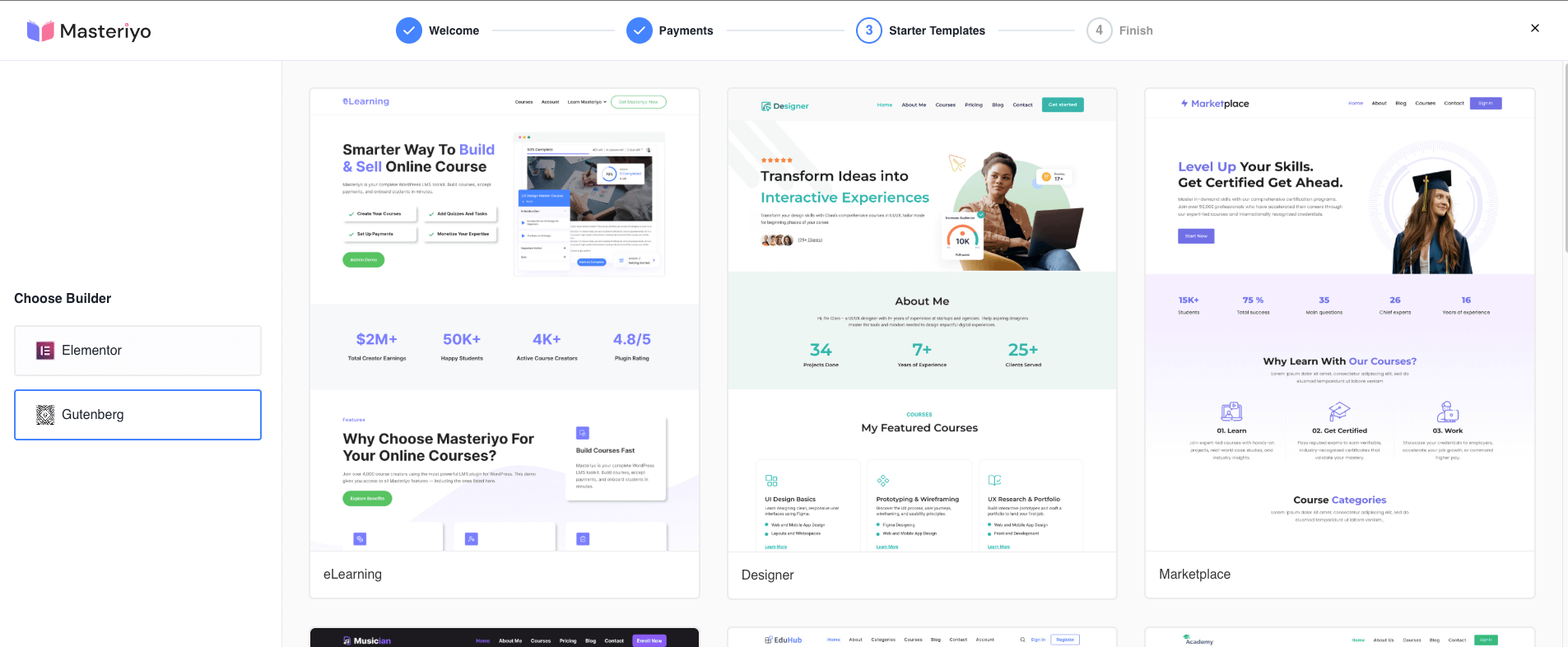
- Continue — shows a screen to pick a builder (Elementor or Gutenberg) and a demo template from the available list
Once you pick a demo, you'll configure typography/colors and course display settings for the imported demo. A Courses Page preview card is shown as part of this configuration step.
Step 4: Finish
A summary of what's ready, which varies slightly based on your earlier answers — for example, whether your Courses, Learn, Account, and Checkout pages are all set up (or just Courses, Learn, and Account, if you're not taking payments).
Sample Course
A sample course toggle is on by default:
- On, fresh site — three example courses are added to your library as drafts
- On, existing courses already present — two example courses are added instead
- Off, fresh site — a single "Getting Started with Masteriyo" course is still added
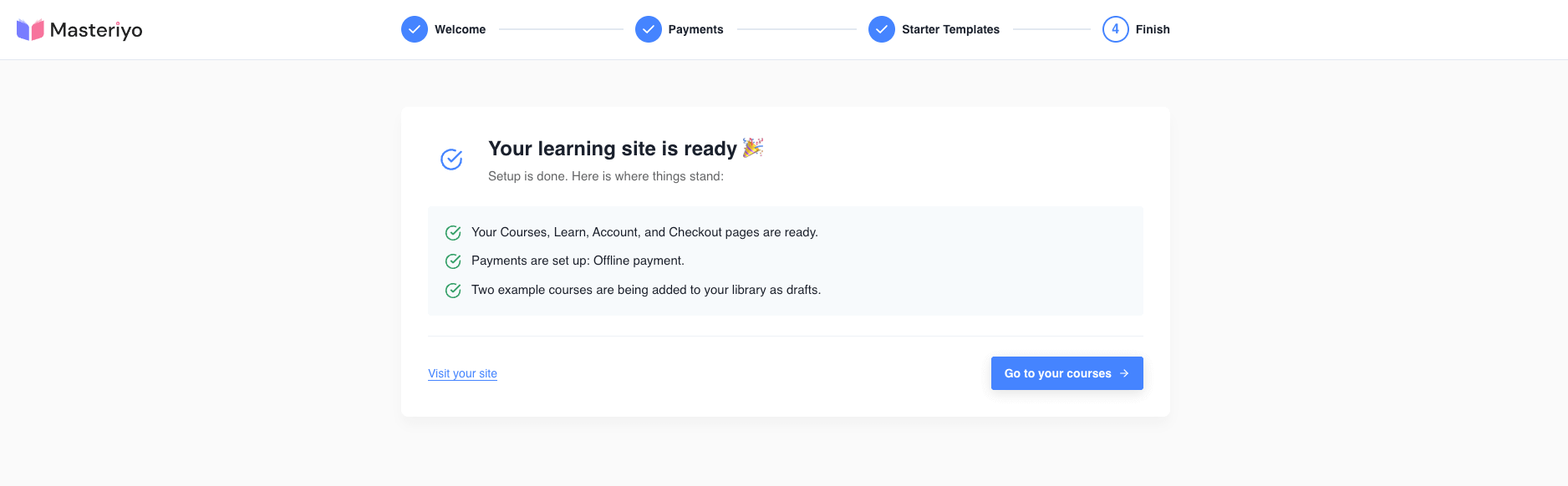
Two buttons finish the wizard:
- Go to your courses — takes you to Masteriyo → Courses
- Visit your site — takes you to your site's homepage
Skipping Steps
- Every step has a Skip this step link, letting you move on without filling anything in (except Welcome, where you must pick an access answer first — the answer is kept even if you skip the rest of that step's fields)
- A × close icon in the header (on every step except Finish) exits the wizard entirely and sends you to your WordPress homepage, without saving whatever you were mid-way through configuring
Frequently Asked Questions
What if I close the wizard partway through?
Just revisit wp-admin/admin.php?page=masteriyo-onboard — it resumes at the step you left off on, using what you already answered.
Does skipping payments mean I can't sell courses later?
No. You can configure any payment gateway at any time from Masteriyo → Settings → Payments, regardless of what you chose during setup.
Can I turn off the sample courses after they're created?
Yes, they're just regular draft courses — delete or edit them like any other course from Masteriyo → Courses.
Does the wizard run again after a plugin update?
No, only once, right after the very first activation.
Was this article helpful to you?
Give us Rating
Last edited on September 07, 2026.
Edit this page