Learn Page ExperienceNew
A tour of the redesigned learn page in Masteriyo 3.5.0 — the header, curriculum sidebar, content types, Q&A drawer, and course completion screen.
What is the Learn Page?
The Learn Page is what a student sees after clicking Start Course — where they work through a course's lessons, quizzes, and other content. Masteriyo 3.5.0 ships a rebuilt learn page with a new layout, mobile app-style navigation, a dedicated Q&A drawer, and a course completion screen with certificate preview and sharing.
Looking for the admin-side toggles (Q&A, lesson comments, focus mode, content protection) instead of the learner-facing layout described here? See Learn Page Settings.
Header and Navigation
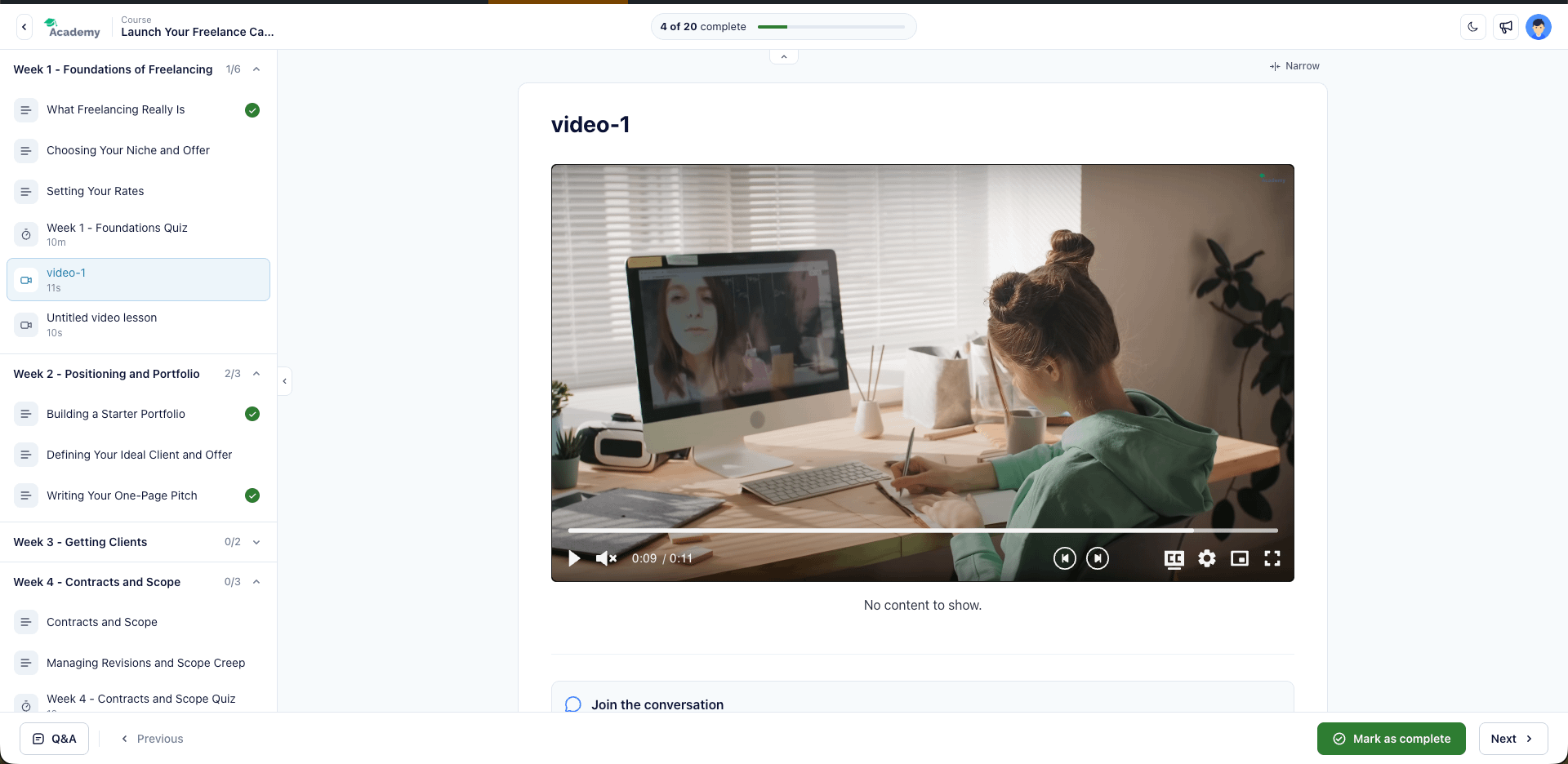
- Desktop: a header bar with the course title, an overall progress indicator (folds into "N of M complete" text on narrower screens), and the rewards pill when GamiPress is active — showing points and rank in one place.
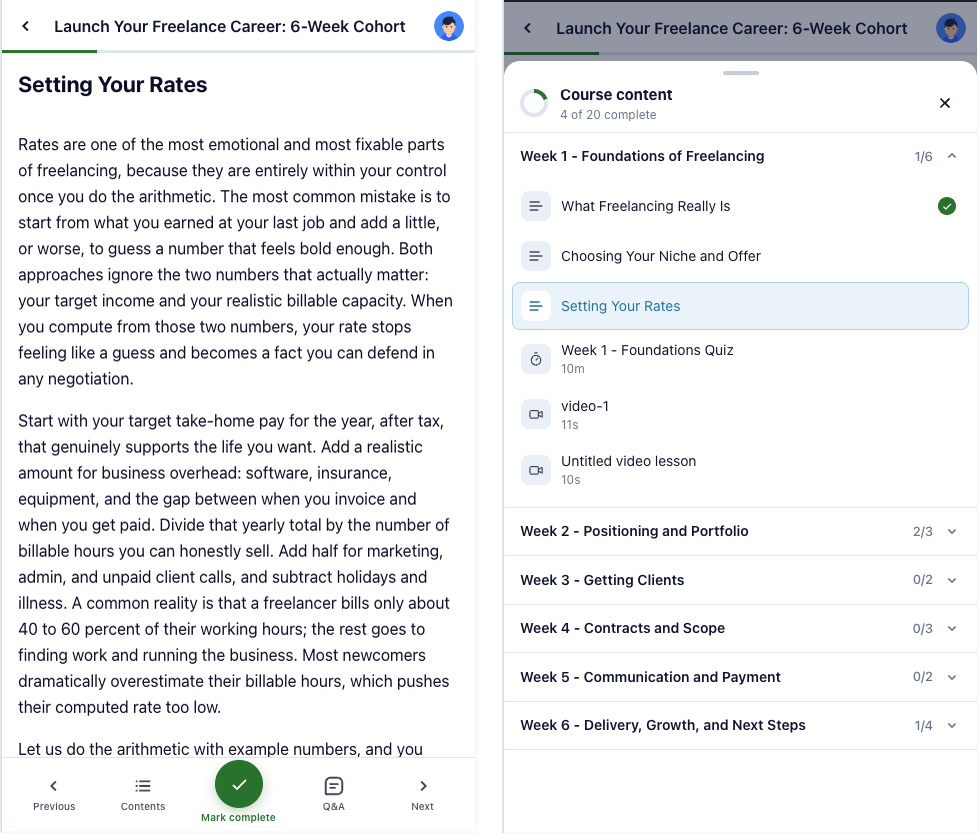
- Mobile: a slim app-style bar with a back arrow, the course title, and the student's avatar, with a progress line underneath. Navigation moves to a bottom action bar instead (see Footer Navigation below).
- Width toggle: switch the content column between a standard and a wide layout (desktop).
- More sheet: a bottom sheet or menu surfacing notifications and course announcements when there are any to show.
Desktop
Mobile
Curriculum Sidebar
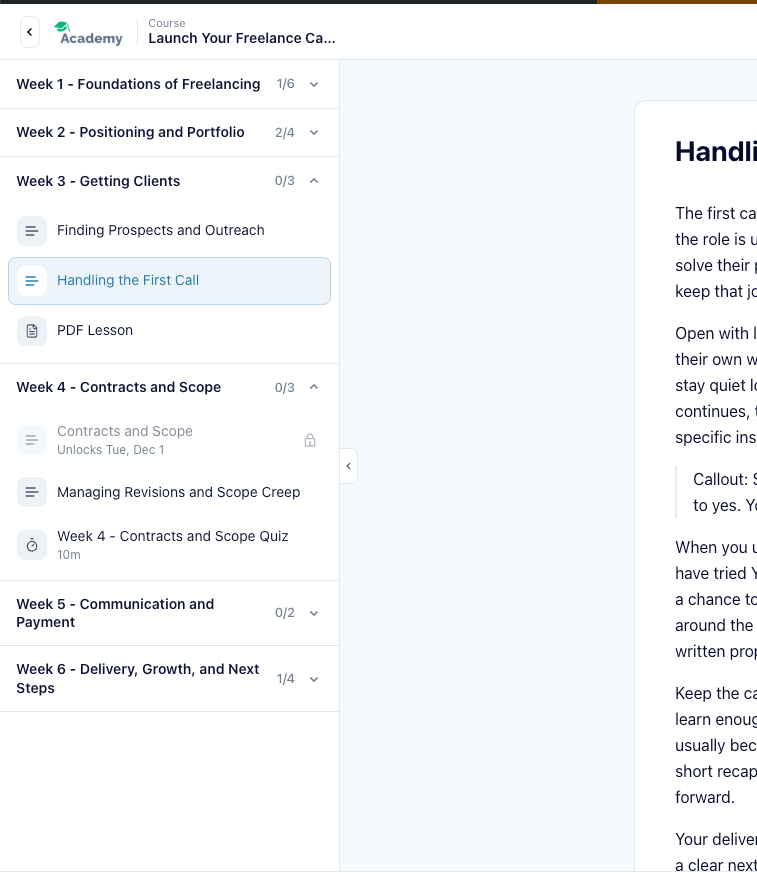
The sidebar lists the course's sections and items (lessons, quizzes, assignments, etc.) with completion status for each. On desktop it sits beside the lesson content and can be folded away to give the content more room; on mobile, tapping Contents in the bottom action bar opens it as a full-screen sheet instead.
The sidebar remembers whether you left it open or folded, the same way it remembers your chosen content width. If you've never toggled it, it falls back to whatever your Focus Mode setting specifies.
Content Types
Each item type gets its own card on the learn page:
- Text lessons — lesson content, downloadable attachments, and lesson comments (if enabled).
- Video lessons — the video player with picture-in-picture, subtitles, and a remembered resume position per user.
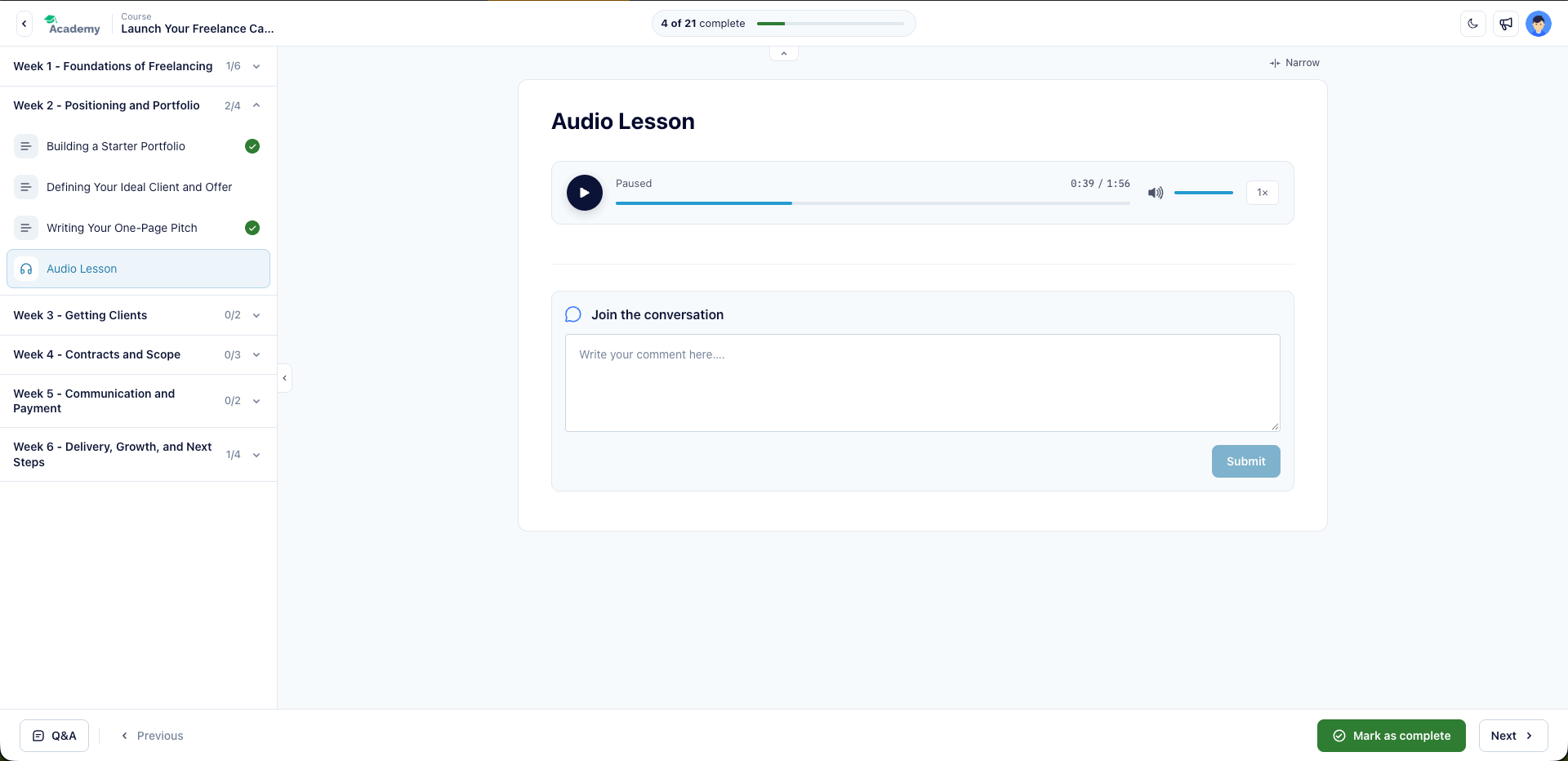
- Audio lessons — a dedicated audio player: round play button, a status line (Ready to play / Playing / Paused / Finished), elapsed/total time, a seek bar, volume (hidden on phones), and a speed control cycling 1x–2x. It also resumes from where the learner left off.
- PDF lessons — a built-in viewer that fits the page to the available width, so PDFs stay readable on phones instead of overflowing.
- Quizzes — intro screen, the attempt itself, and a per-question results breakdown after submitting (see Advanced Quiz Creation).
- Assignments — a step-by-step submission flow.
- H5P content — an H5P card with its own scoreboard.
- Zoom / Google Meet — a single meeting card shared by both integrations.
Locked content (not yet unlocked by content drip or prerequisites), empty states, and error states each get their own screen instead of a blank page.
Audio Lesson
PDF Lesson (Mobile View)
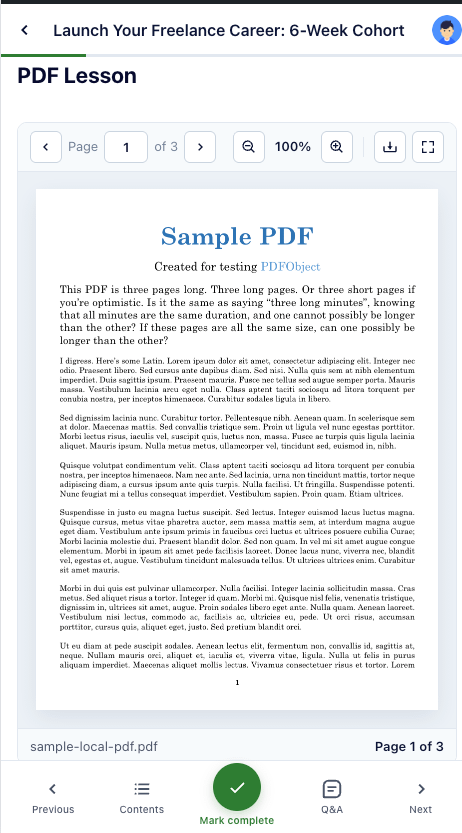
Locked Content
Footer Navigation
A footer (desktop) and bottom action bar (mobile) move the learner between items. On mobile the bar has five actions: Previous, Contents (opens the curriculum sheet above), a center Mark Complete button, Q&A, and Next — with a distinct state once the learner reaches the last item in the course.
Questions & Answers (Q&A) Drawer
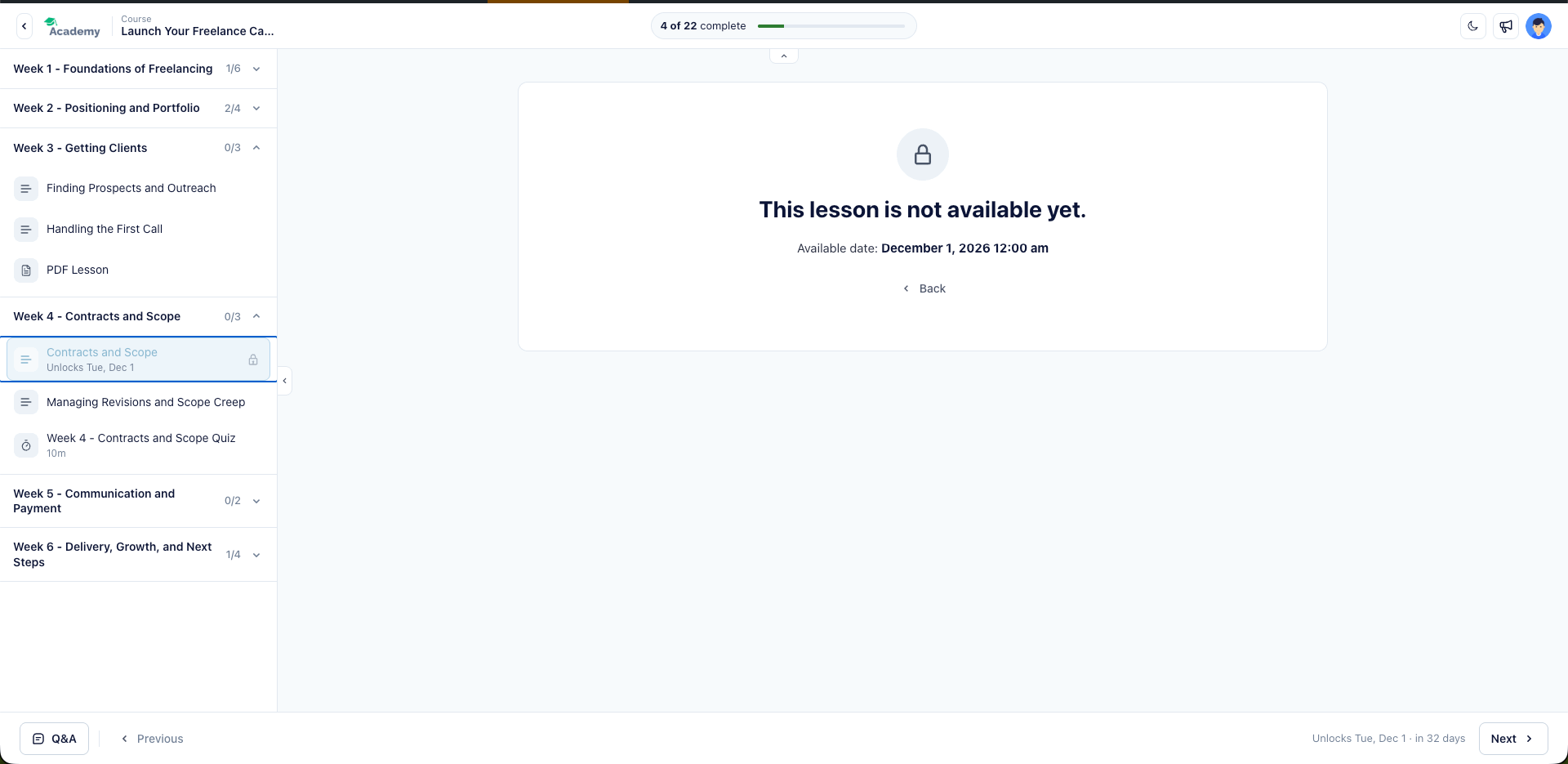
When Enable Questions & Answers is turned on in Learn Page Settings, students can ask and answer questions from a drawer alongside the lesson instead of a separate tab. The Ask / Send buttons stay disabled until there's text to submit.
Dark Mode
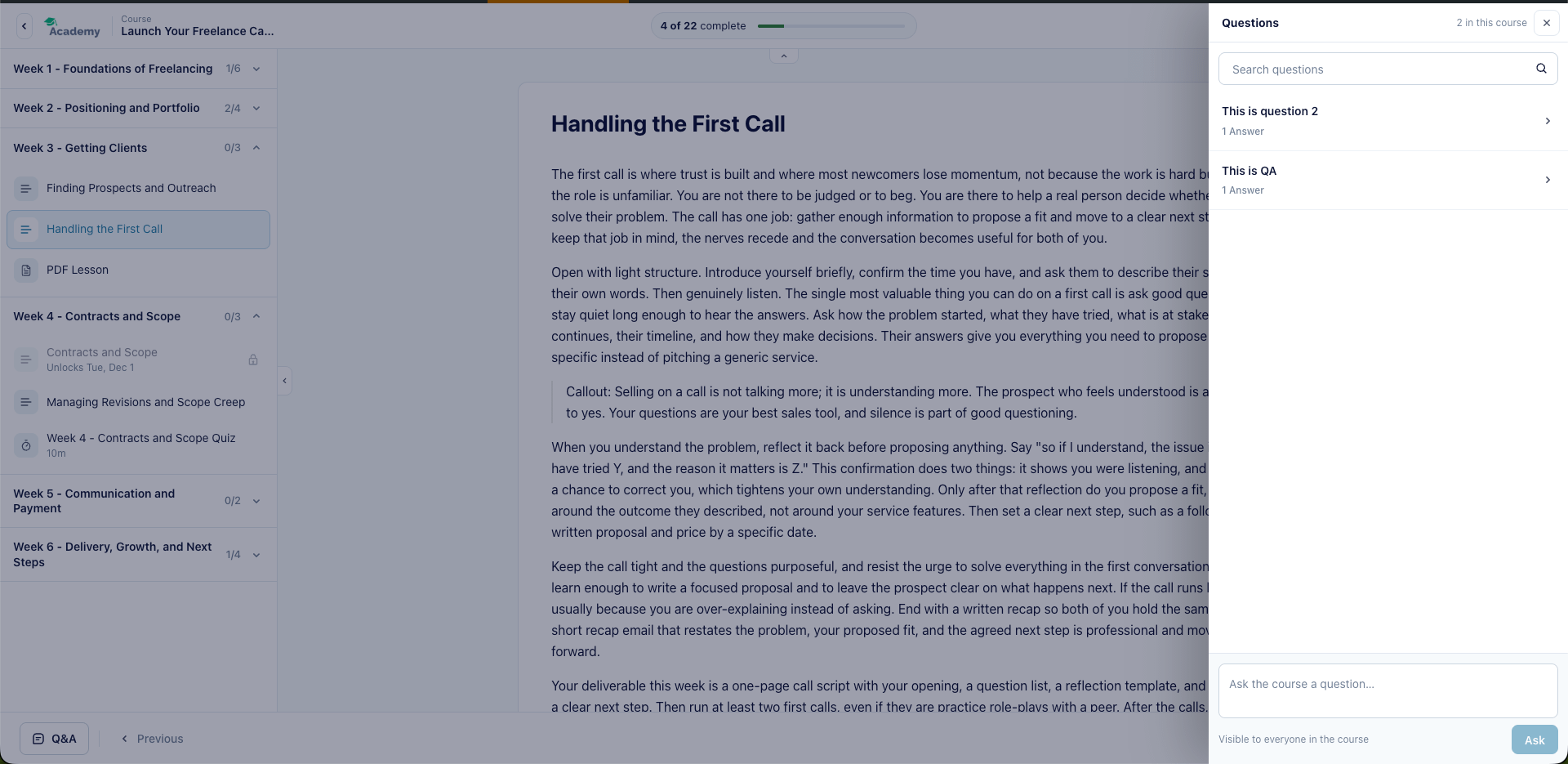
Students can switch between light and dark mode from the learn page's top navigation bar. See How to enable light/dark mode in Learn pages for the exact steps.
Course Completion Screen
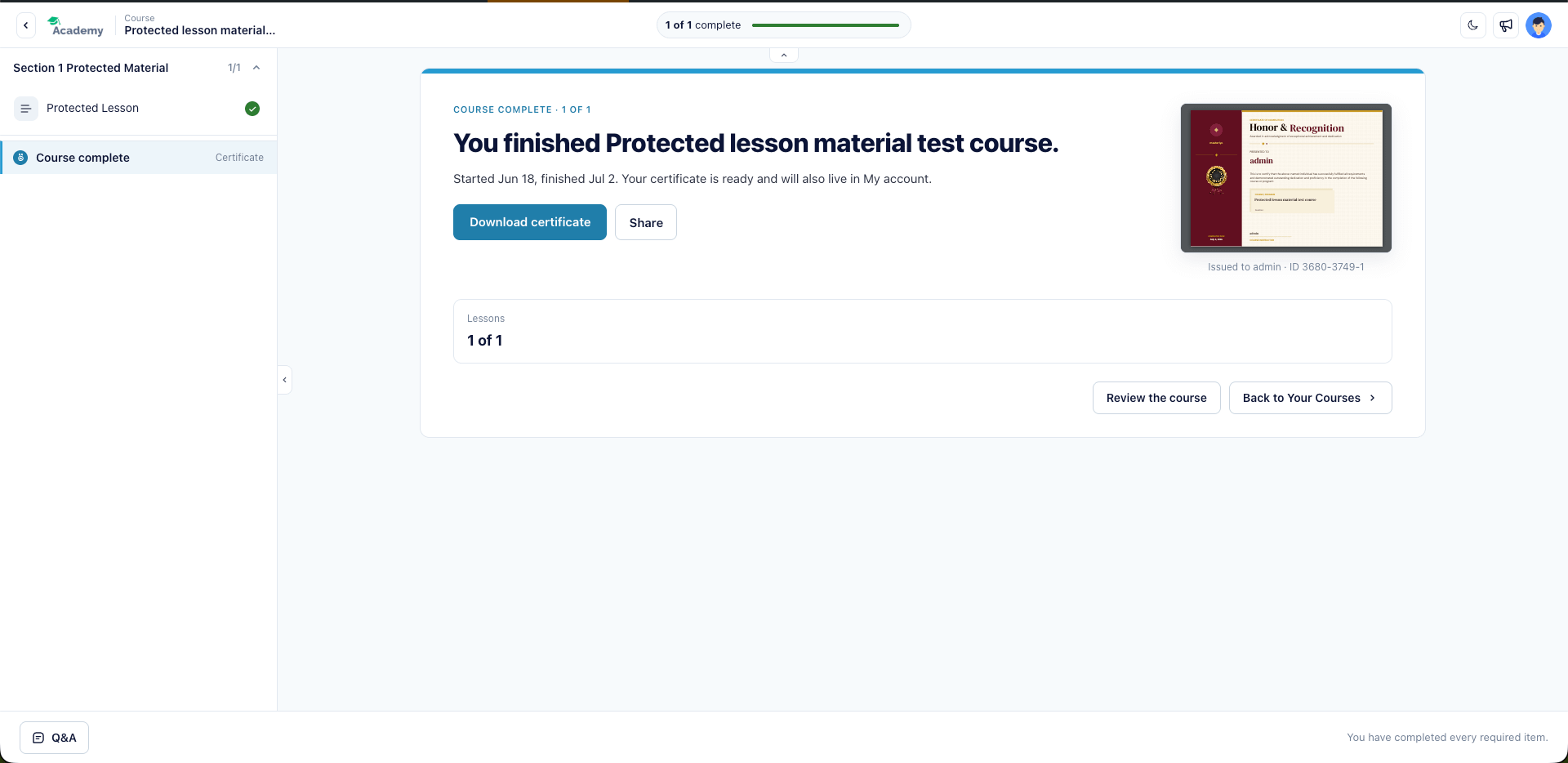
Finishing the last item opens a completion screen instead of just marking the course done. It brings together:
- Certificate preview — if the course has a certificate, it renders to fit the screen (scaled down, never enlarged) so the whole design is visible at a glance, with share options from there.
- Results — a summary of the learner's quiz and assignment outcomes.
- Inline review — a prompt to leave a course review without leaving the completion screen.
Rewards (points, ranks, achievements) from the GamiPress integration update live as items are completed, with a toast noting what changed (for example, "+5 coins" or a rank up) — see GamiPress Integration.
Frequently Asked Questions
Is the new learn page available on Masteriyo Free?
Yes. The redesigned learn page ships for everyone; the Q&A drawer, dark mode, and completion screen are available on Free, while specific content types like Zoom, Google Meet, H5P, and assignments depend on their respective add-ons being active.
Can students resume where they left off?
Yes — video and audio lessons keep a per-user resume position, and the sidebar/content-width preferences are remembered per browser.
Does the new learn page change how courses or quizzes are built?
No. This is a frontend rebuild of the page a student sees — course and quiz creation in the Course Builder is unchanged.
Was this article helpful to you?
Give us Rating
Last edited on November 02, 2026.
Edit this page