Demo Student Preview
Preview your course from a student's perspective directly from the course builder or course list.
Demo Student Preview lets admins and instructors experience a course exactly as a student would without needing a separate account. Launch a temporary demo student session to test enrollment flows, lesson access, quiz behavior, and course progress.
Prerequisites:
- Masteriyo LMS (Free or Pro)
- Plugin version 2.2.0 or higher
- You must be logged in as an Administrator or Instructor
When you launch a Demo Student Preview, you will be temporarily logged out of your admin or instructor account. The plugin automatically switches your browser session to the demo student account. Your original session is saved and restored automatically when you exit the preview.
If your admin session expires while you are in preview mode, you will be redirected to the login page instead of being restored automatically.
How to Launch Demo Student Preview
There are two ways to start a Demo Student Preview.
Method 1: From the Course Builder
- Navigate to Masteriyo > Courses and open any course in the builder.
- In the course builder header, click the Demo Student Preview button.
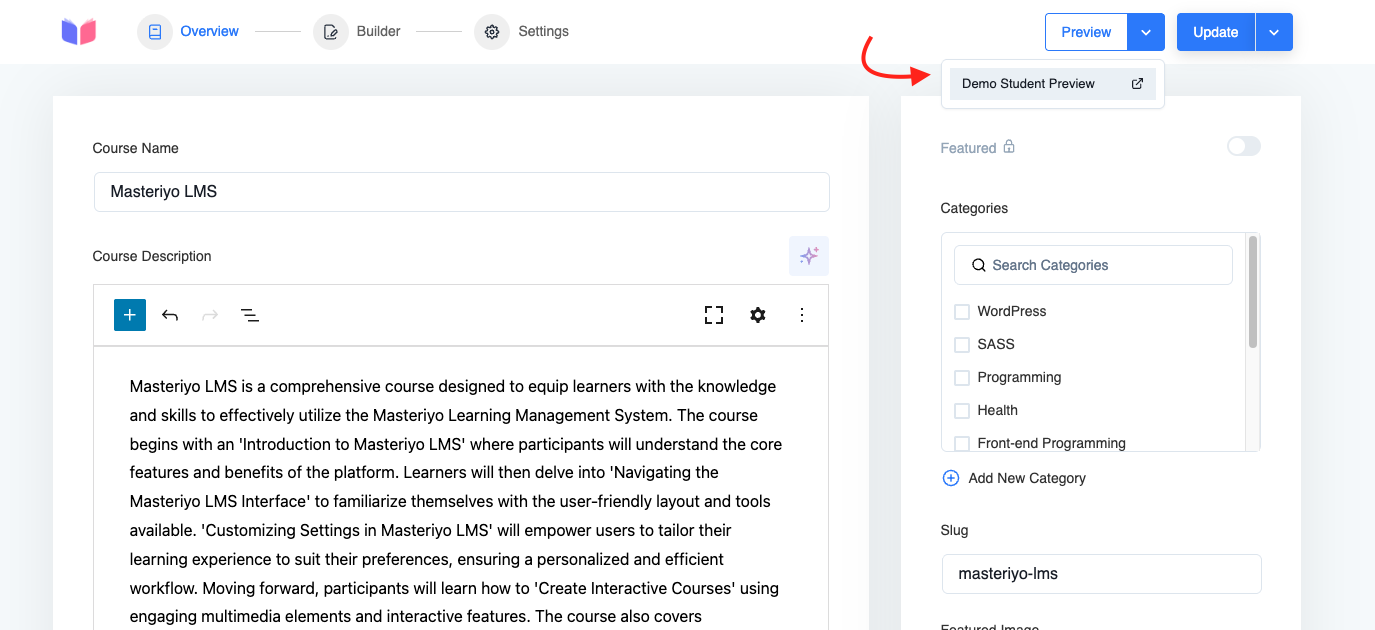
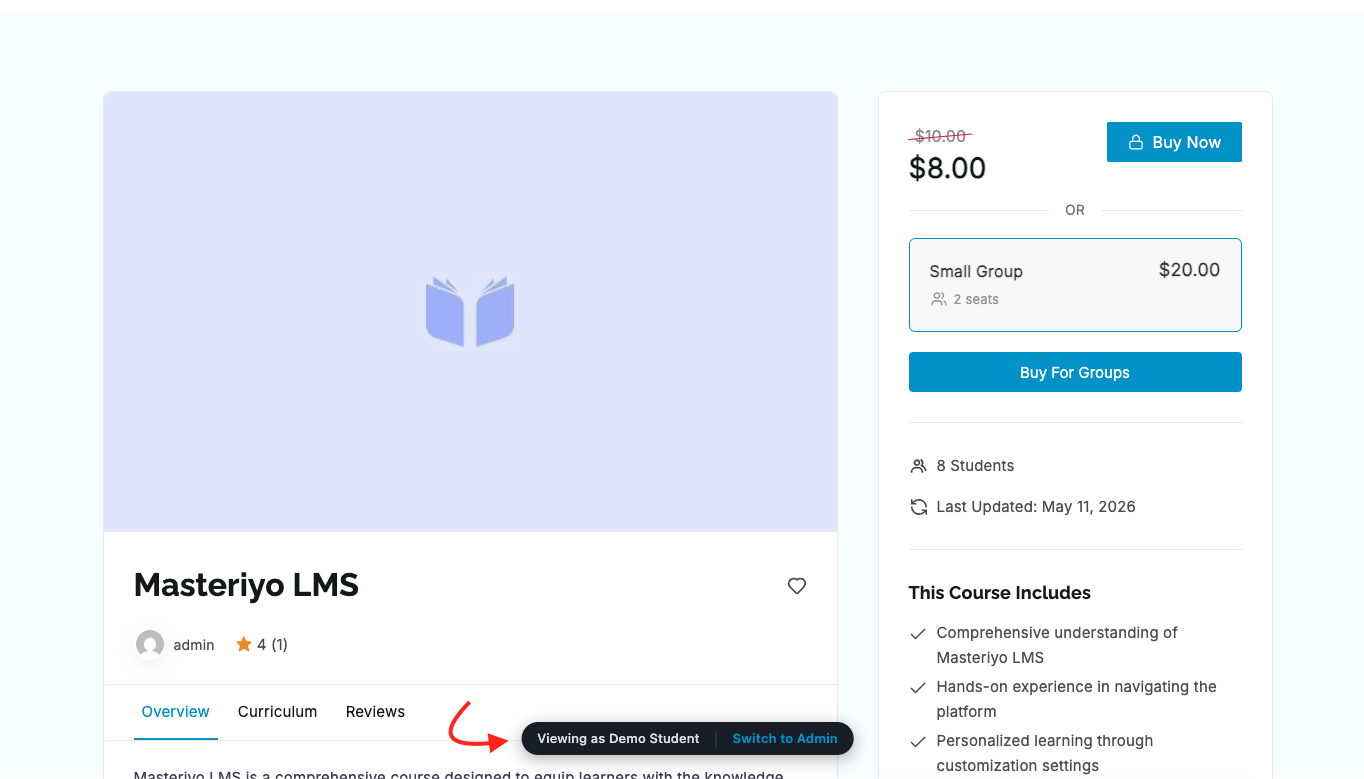
- A new browser tab will open, loading the course frontend as the demo student.
- A floating pill will appear at the bottom center of the page showing "Viewing as Demo Student" with a "Switch to Admin" (or "Switch to Instructor") button.
Method 2: From the Course List
- Navigate to Masteriyo > Courses.
- Hover over any course row to reveal the row actions.
- Click Demo Student Preview.
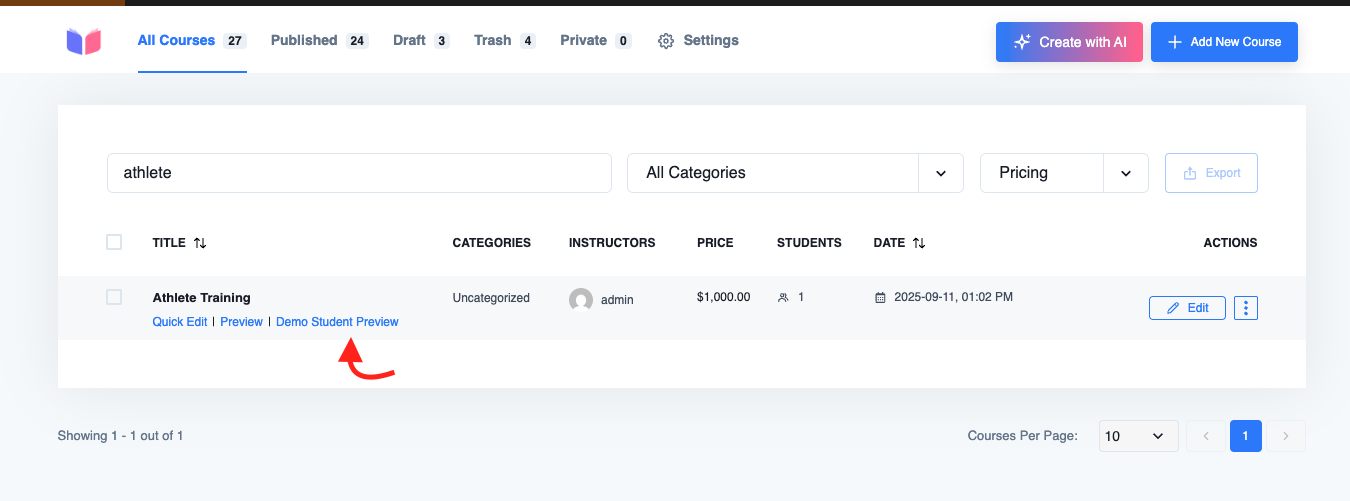
- A new browser tab will open with the course loaded in demo student mode.
Exiting the Preview
To return to your admin or instructor account:
- Click the "Switch to Admin" (or "Switch to Instructor") button in the floating pill at the bottom center of the screen.
- You will be logged back into your original account automatically.
What Happens During a Preview
- A site-wide demo student account is automatically created by the plugin on first use — you do not need to create one manually.
- The demo student is temporarily enrolled in the course for the preview session.
- All activity (lesson views, quiz attempts) is recorded against the demo student, not your admin account.
- The demo student appears in the Students list labeled "Demo purpose only".
Notes
- The demo student account is managed automatically by the plugin — do not delete it manually.
- Preview sessions are secured with a signed, time-limited token and cannot be shared or replayed.
- Only Administrators and Instructors can access this feature.
Was this article helpful to you?
Give us Rating
Last edited on June 25, 2026.
Edit this page