Cohort Mode - Run Time-Based Courses Pro
Cohort Mode allows you to run your courses as scheduled sessions with specific start and end dates.
What is Cohort Mode?
Cohort Mode allows you to run your courses as scheduled sessions with specific start and end dates. Instead of allowing students to enroll and start anytime, you can create instructor-led, time-bound learning experiences where all students progress through the course together.
Think of it like a traditional classroom that starts on a specific date and runs for a set duration - perfect for live courses, group learning, or seasonal programs.
Key Benefits
- Structured Learning: Create focused learning periods with clear start and end dates
- Group Learning: Students learn together in the same timeframe, fostering community
- Better Engagement: Time-limited access encourages students to complete courses
- Instructor-Led Courses: Perfect for courses with live sessions, webinars, or scheduled activities
- Multiple Sessions: Run the same course multiple times with different cohorts
- Enrollment Control: Define exactly when students can enroll
Requirements
- Masteriyo PRO or Elite plan
- Version 3.1.0 or higher
How Cohort Mode Works
When you enable Cohort Mode, you control four key dates:
- Enrollment Opens On: When students can start enrolling
- Enrollment Closes On: Last date for enrollments
- Course Starts On: When course content becomes accessible
- Course Ends On: When the course finishes and content becomes locked
Date Sequence
Enrollment Opens → Enrollment Closes → Course Starts → Course Ends
Important: All dates must follow this order. You cannot set an enrollment close date before the enrollment open date, or a course start date before enrollment closes.
Setting Up a Cohort Course
Step 1: Enable Cohort Mode
- Go to Courses → Edit Course
- Navigate to the Settings tab in the course builder
- Find the Cohort Mode section
- Toggle on Enable Cohort Mode
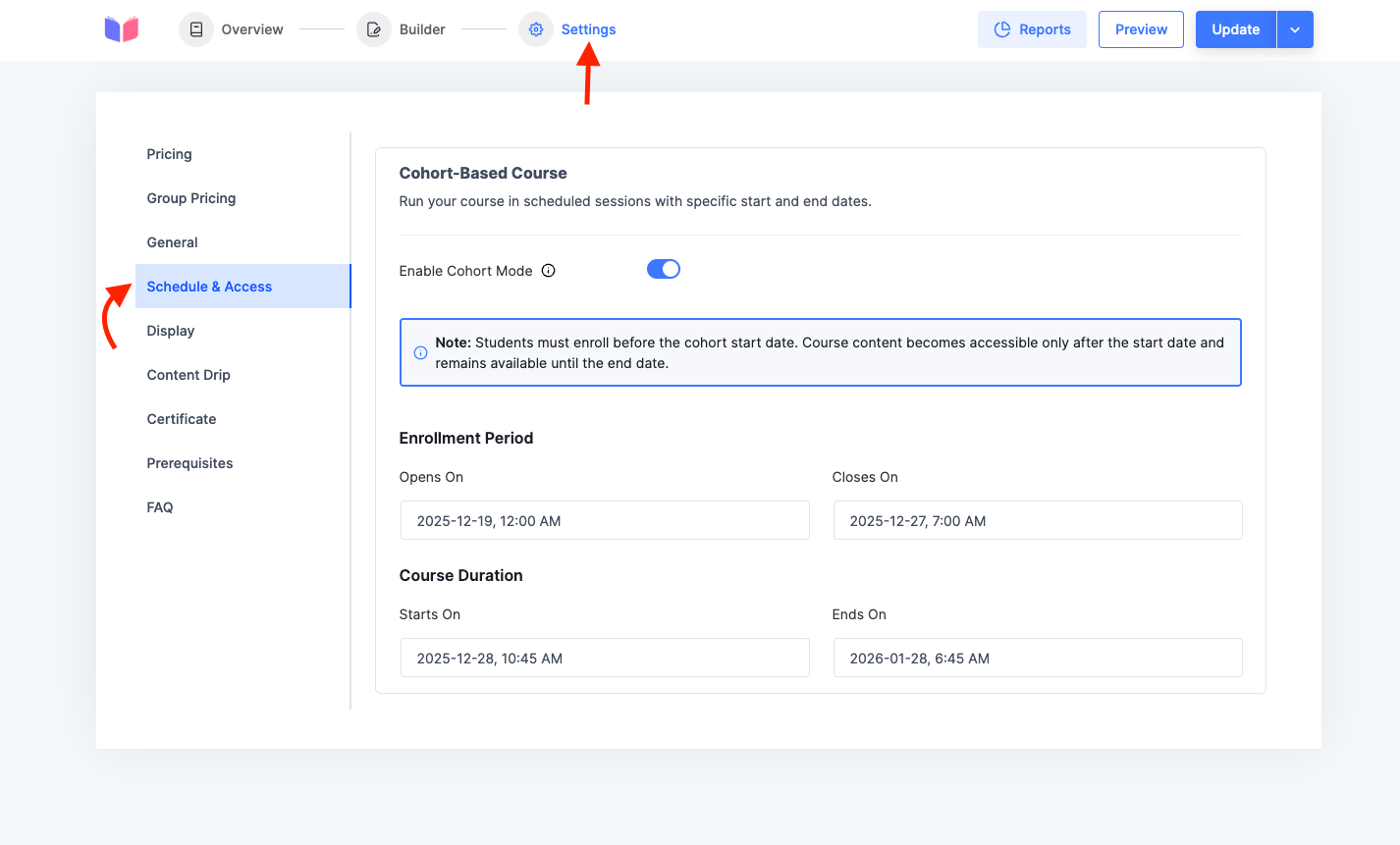
Step 2: Configure Enrollment Period
Set when students can enroll in your course:
Enrollment Opens On
- The date and time when enrollment begins
- Students cannot enroll before this date
- Example:
December 1, 2025, 9:00 AM
Enrollment Closes On
- The last date and time to accept enrollments
- Must be on or after enrollment open date
- Must be before course start date
- Example:
December 15, 2025, 11:59 PM
Step 3: Set Course Duration
Define when your course runs:
Course Starts On
- When course content becomes accessible to enrolled students
- Must be after enrollment closes
- Students cannot access content before this date, even if enrolled
- Example:
December 20, 2025, 10:00 AM
Course Ends On
- When the course finishes
- After this date, course content becomes locked
- Must be after course start date
- Example:
January 20, 2026, 5:00 PM
Step 4: Publish
Click Publish or Update to save your cohort settings.
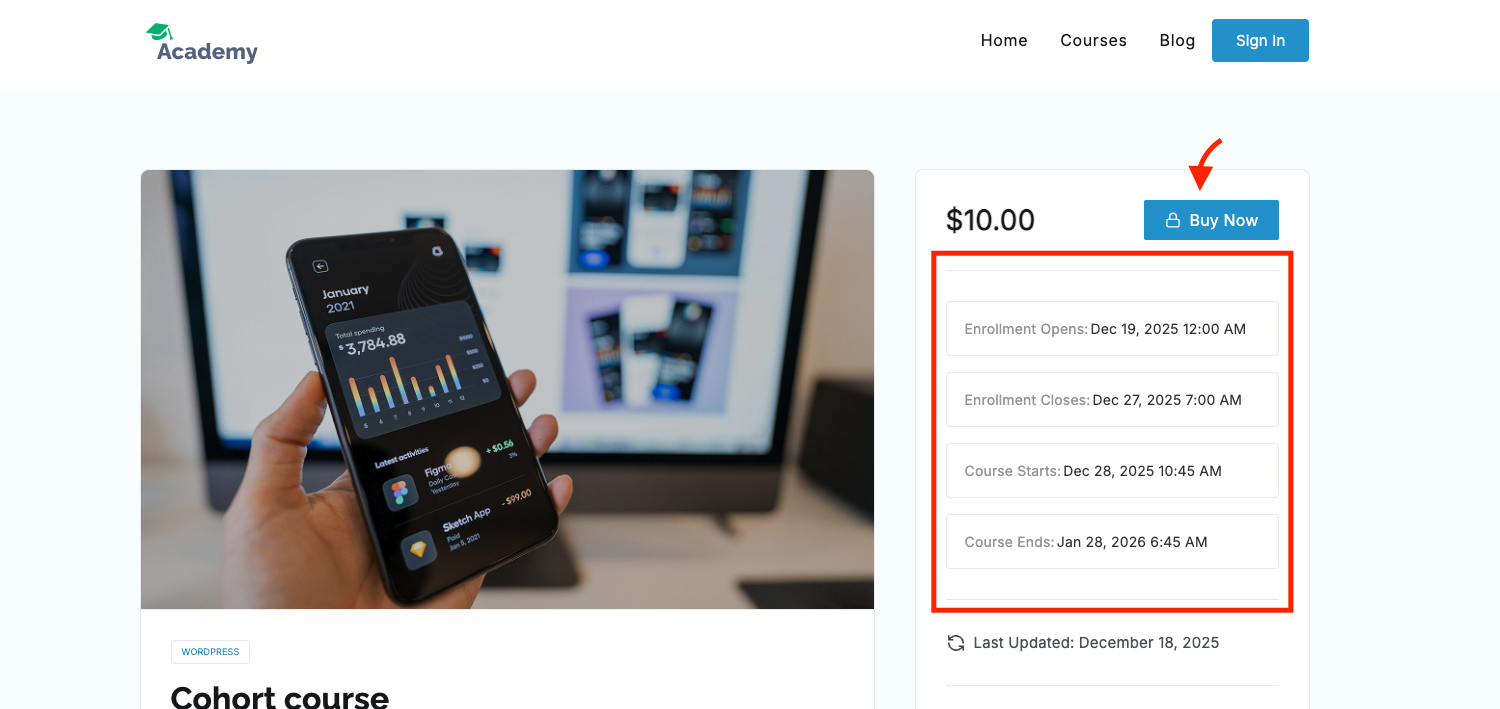
(Image: Single course page cohort course UI.)
Student Experience
Before Enrollment Opens
- Students see: "Enrollment opens on [date]"
- Enroll button is disabled with a lock icon
During Enrollment Period
- Students can enroll in the course
- For paid courses: Standard checkout process
- For free courses: Instant enrollment with one click (Student need to log in their account)
- Enrollment button shows "Enroll Now"
After Enrollment Closes
- New students cannot enroll
- Message displayed: "Enrollment for this course is already closed"
- Enrolled students must wait until course starts
During Course Period (Active Cohort)
- Enrolled students can access all course content
- Standard learning experience: lessons, quizzes, assignments
- Progress tracking works normally
- Students can complete the course at their own pace within the timeframe
After Course Ends
- Course content becomes locked for all students
- Students cannot access lessons or materials
- Previously earned certificates remain valid
Common Use Cases
Seasonal Programs
Run courses in quarters or semesters:
- Winter Cohort: January - March
- Spring Cohort: April - June
- Summer Cohort: July - September
- Fall Cohort: October - December
Bootcamp-Style Courses
Intensive short-term programs:
- Enrollment: 2 weeks before start
- Course Duration: 4-12 weeks
- Fixed start date with group learning
Live Training Programs
Courses with scheduled live sessions:
- Enrollment closes before first session
- Course runs during training period
- Access to recordings during cohort only
Monthly Challenges
Short-term focused learning:
- Enrollment: Last week of previous month
- Course: Runs throughout current month
- Creates urgency and community
Practical Example
Let's say you want to run a "Web Development Bootcamp" starting in January 2026:
Course Name: Web Development Bootcamp - January 2026 Cohort

Enrollment Opens On:    December 1, 2025, 9:00 AM
Enrollment Closes On:   December 28, 2025, 11:59 PM
Course Starts On:       January 6, 2026, 10:00 AM
Course Ends On:         March 31, 2026, 5:00 PM
Timeline:
- Dec 1-28: Open enrollment period (4 weeks)
- Dec 29-Jan 5: Preparation period for enrolled students
- Jan 6-Mar 31: Active course period (12 weeks)
- After Mar 31: Course content locked
Best Practices
Planning Your Cohort
-
Buffer Time: Leave a gap between enrollment close and course start (1-2 weeks recommended)
- Gives you time to prepare
- Allows students to get ready
- Prevents last-minute enrollment chaos
-
Enrollment Window: Make it long enough
- Minimum 1-2 weeks for short courses
- 4-6 weeks for major programs
- Consider your audience's decision-making time
-
Course Duration: Be realistic
- Account for holidays and breaks
- Consider student time availability
- Plan for 1.5x the minimum completion time
Communication
- Clear Dates: Display all important dates prominently in course description
- Email Reminders:
- When enrollment opens
- 1 week before enrollment closes
- 2 days before course starts
- When course starts
- Set Expectations: Explain that content locks after course ends
Multiple Cohorts
For popular courses, run multiple cohorts:
- Clone your course
- Rename with cohort identifier: "Course Name - January 2026"
- Set different dates for each cohort
- Keep separate student groups
Frequently Asked Questions
Can I change cohort dates after publishing?
Yes, you can edit cohort dates anytime before the course starts. However, avoid changing dates after students have enrolled to prevent confusion.
What happens if a student enrolls but doesn't start on time?
They can still access the course during the active period (between course start and end dates). They just have less time to complete it.
Can students access course content after it ends?
No. When the course end date passes, all content becomes locked. Students cannot access lessons, quizzes, or downloads.
Do certificates still work with cohort mode?
Yes. Students who complete the course and earn a certificate during the cohort period keep their certificates forever, even after the course ends.
Can I offer lifetime access with cohort mode?
Not simultaneously. Cohort mode is designed for time-limited access. For lifetime access, disable cohort mode.
What if I don't set an enrollment close date?
You must set all four dates (enrollment open, enrollment close, course start, course end) when cohort mode is enabled. They are all required fields.
Can students who enrolled see course content before it starts?
No. Even enrolled students cannot access any course content until the course start date arrives.
How do paid courses work with cohort mode?
The checkout process remains the same. Students can purchase during the enrollment period, but cannot access content until course starts.
Can I run the same course with different cohorts simultaneously?
No. Each course can only have one set of cohort dates. To run multiple cohorts, create separate course copies with different dates.
What happens to course reviews?
Reviews work normally. Students can leave reviews during or after the cohort period if they've enrolled.
Troubleshooting
Students saying they can't enroll
Check:
- Current date is between enrollment open and close dates
- Enrollment hasn't already closed
- Course is published and visible
- User is logged in (for free courses)
Students can't access content after enrolling
Check:
- Current date is after course start date
- Current date is before course end date
- Student's enrollment is active
- User is logged in
Date picker not showing or dates won't save
Check:
- You're using Masteriyo PRO or Elite (not Basic plan)
- Plugin version is 3.1.0 or higher
- All required dates are filled in
- Dates follow the correct sequence
Cohort settings not appearing
Verify:
- You have an active PRO or Elite license
- License is activated on your site
- Plugin updated to version 3.1.0+
- Clear browser cache and refresh
Disabling Cohort Mode
To convert a cohort course back to regular anytime access:
- Edit the course
- Go to Settings tab
- Toggle off Enable Cohort Mode
- Save changes
Note: Existing enrollments remain active. Students will have normal lifetime access (unless you have other access restrictions).
Was this article helpful to you?
Give us Rating
Last edited on May 13, 2026.
Edit this page